Quick Answer: Before installing any APK, don’t rely on a single “safe” indicator. Verify where it came from, whether the developer actually published it, whether its digital signature matches previous trusted versions, and whether the permissions make sense for the app’s purpose. If even one of these checks fails—or you cannot verify them—it’s usually safer to install the app from an official app store or skip it entirely.
Table of Contents
Why APK Authenticity Matters More Than Malware Scans
Many users believe that if an APK passes an antivirus scan, it is authentic.
That’s only part of the picture.
An APK can be:
- Clean but unofficial
- Modified without malicious code
- Repackaged with advertising libraries
- Built from an older version
- Signed by someone other than the original developer
None of these situations necessarily trigger antivirus warnings, yet they still mean you’re not installing the genuine application.
Authenticity answers a different question:
“Is this the exact app that the original developer intended users to install?”
That question deserves its own verification process.
Step 1: Ask Why You’re Installing an APK Instead of Using an App Store
Before checking the file itself, ask one simple question:
Why isn’t this app being installed from an official store?
Sometimes there are valid reasons:
- The developer distributes beta versions directly.
- The app isn’t available in your country.
- The app is designed for enterprise deployment.
- The developer offers testing builds.
Other situations deserve extra caution:
- Someone shared it through messaging apps.
- It appeared on a random website.
- A social media post claimed it unlocks premium features.
- The file name includes words like “Pro,” “Premium,” “Unlocked,” or “Mod.”
If the distribution method already feels suspicious, authenticity becomes much harder to establish.
Step 2: Identify the Original Developer First
Most people download an APK before confirming who actually made the app.
Reverse the process.
Find:
- Official developer website
- Official app store listing
- Official social media announcements
- Official support documentation
Now compare:
- App name
- Package name
- Version number
- Release date
If the APK claims to be newer than every official source, treat it cautiously until you can confirm the release.
Step 3: Compare the Package Name
The package name is one of the easiest authenticity clues that many users ignore.
Example format:
com.company.appnameSmall differences matter.
Examples:
com.company.chatversus
com.company.chatproor
com.chat.companyThese may look similar but represent completely different applications.
An unfamiliar package name doesn’t automatically mean danger—but it should prompt further verification.
Step 4: Check the App’s Digital Signature
Every authentic Android app is signed with a developer’s cryptographic certificate.
This signature acts like the app’s identity.
If an app has been modified and re-signed, Android treats it as coming from a different publisher.
A practical approach:
- Compare the signing certificate with a previously trusted version of the same app.
- If an update suddenly uses a different certificate without explanation, investigate before installing.
Certificate changes are uncommon and usually announced by legitimate developers.
Step 5: Verify Whether the Version Makes Sense
Version numbers can reveal inconsistencies.
Ask:
- Is this version newer than the official release?
- Does the release date match?
- Has the developer announced this version?
- Is the changelog available?
Unexpected version jumps or missing release information may indicate the APK isn’t the official build.
Step 6: Read Permissions Like a Story, Not a Checklist
Instead of counting permissions, ask whether they fit the app’s purpose.
Examples:
A flashlight app probably doesn’t need:
- Contacts
- SMS
- Phone state
A calculator app probably doesn’t need:
- Location
- Camera
- Microphone
Some permissions can have legitimate reasons, but unexpected combinations deserve closer examination.
Think about the app’s job.
Then ask:
“Would I expect this tool to need this access?”
Step 7: Examine the File’s Consistency
One overlooked authenticity clue is consistency.
Look for details that fit together logically:
- File name
- Version number
- App icon
- Release notes
- Package name
- Developer name
When several small details don’t match, authenticity becomes less likely.
Individually, each inconsistency may seem minor.
Together, they form a pattern.
Step 8: Look for Official Release Announcements
Many reputable developers publish release information through:
- Official website
- Blog
- Community forum
- Verified social media accounts
If an APK claims to be a major update but there’s no official announcement anywhere, wait until more information becomes available.
Step 9: Don’t Ignore Installation Warnings
Android sometimes displays warnings during installation.
Examples include:
- Unknown source installation
- Existing app signature mismatch
- Installation blocked
- Package conflicts
These messages shouldn’t automatically be dismissed.
They often indicate that something about the APK differs from the version already installed or from Android’s security expectations.
Step 10: Consider the Timing
This is a verification step that many guides overlook.
Ask yourself:
- Did this APK appear immediately after a major app update?
- Did it appear before the official rollout?
- Is everyone rushing to download it?
Popular updates often attract unofficial repackaged copies because users want early access.
Waiting even a day or two may provide enough time for official confirmation.
Red Flags That Don’t Get Enough Attention
Many articles focus only on malware.
Instead, watch for these subtle warning signs:
- Release notes copied from older versions.
- Screenshots showing a different app version.
- Developer email that doesn’t match the official website.
- App icon slightly different from the official branding.
- File size dramatically larger or smaller than previous versions.
- Missing privacy policy.
- No support contact.
- Multiple unofficial mirrors with different file sizes.
- Inconsistent update history.
None of these prove the APK is unsafe.
But together, they reduce confidence in its authenticity.
A Practical Trust Checklist
Before installing, ask yourself:
✅ Do I know who created the app?
✅ Can I identify the original developer?
✅ Does the package name match?
✅ Does the version exist officially?
✅ Does the signing certificate appear consistent?
✅ Do the permissions make sense?
✅ Is the release publicly acknowledged?
✅ Does everything about the APK tell the same story?
If several answers are “No” or “I’m not sure,” waiting or using an official distribution channel is usually the safer choice.
Common Mistakes Users Make
- Trusting download counts instead of verifying the publisher.
- Assuming antivirus results confirm authenticity.
- Ignoring certificate changes.
- Installing the newest version simply because it’s newer.
- Believing identical icons guarantee the same application.
- Skipping permission review after installation.
- Downloading immediately after seeing social media recommendations.
Who Should Be Extra Careful?
Consider avoiding unofficial APK installations if you:
- Use mobile banking regularly.
- Store work-related information on your device.
- Manage sensitive personal documents.
- Use your phone for two-factor authentication.
- Share the device with family members.
- Are unsure how to verify app identity.
For these users, official app stores generally provide a simpler and lower-risk installation path.
When an APK May Be Worth Considering
Installing an APK may be reasonable when:
- The developer officially provides it.
- The app isn’t yet available in your region.
- You’re participating in a public beta.
- The developer publishes direct downloads for testing or enterprise use.
Even then, verify the APK using the checks outlined above before installing.
Final Lines
Authenticity is about confidence, not just malware detection. A trustworthy APK should present a consistent identity—from its publisher and package name to its signature, version history, permissions, and release information. When multiple pieces of evidence align, you can make a more informed installation decision. When they don’t, it’s usually better to pause, verify further, or choose an official distribution source instead of relying on assumptions.
Keep Exploring
Discover more reviews, guides, and comparisons to help you choose the right Android apps.
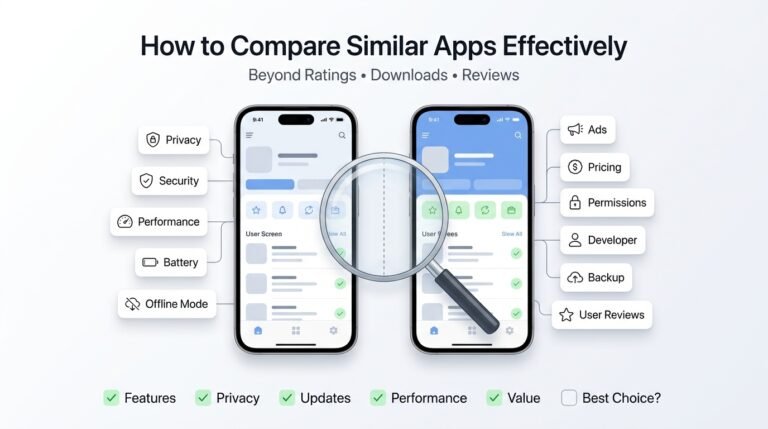 How to Compare Similar Apps Like an Expert (27 Checks)
Published: 27 Jul 2026 • 01:23 PM Updated: 27 Jul 2026 • 01:23 PM Reading: 7 min read...
How to Compare Similar Apps Like an Expert (27 Checks)
Published: 27 Jul 2026 • 01:23 PM Updated: 27 Jul 2026 • 01:23 PM Reading: 7 min read...
 How to Choose the Right Android App Before Downloading: A Practical Decision Guide (2026)
Published: 25 Jul 2026 • 04:45 PM Updated: 25 Jul 2026 • 04:45 PM Reading: 7 min read...
How to Choose the Right Android App Before Downloading: A Practical Decision Guide (2026)
Published: 25 Jul 2026 • 04:45 PM Updated: 25 Jul 2026 • 04:45 PM Reading: 7 min read...
 How to Check If an App Shares Data With Third Parties
Published: 21 Jul 2026 • 11:30 PM Updated: 21 Jul 2026 • 11:34 PM Reading: 19 min read...
How to Check If an App Shares Data With Third Parties
Published: 21 Jul 2026 • 11:30 PM Updated: 21 Jul 2026 • 11:34 PM Reading: 19 min read...
 What Happens When You Delete an App? The Complete Android Guide
Published: 17 Jul 2026 • 12:09 AM Updated: 17 Jul 2026 • 12:09 AM Reading: 47 min read...
What Happens When You Delete an App? The Complete Android Guide
Published: 17 Jul 2026 • 12:09 AM Updated: 17 Jul 2026 • 12:09 AM Reading: 47 min read...