Quick Answer
Not every Android phone can record calls without installing an app. Built-in call recording depends on your phone’s manufacturer, Android version, regional software, and the Phone app you’re using. If your device includes a native call recording feature, you can usually record calls directly from the Phone app without downloading additional software. If the feature isn’t available, there is no universal setting that can safely enable it on every Android device. This guide explains how to check your phone correctly, why the feature varies between devices, and what options may be available.
Searching for “How to record a call on Android without an app” sounds straightforward—until you realize your phone doesn’t even have a Record button.
You search Google, watch YouTube videos, and read blog posts claiming that every Android phone can record calls without installing anything. Some articles tell you to tap a button that doesn’t exist on your screen. Others recommend hidden settings that never appear on your device.
If you’ve experienced this, you’re not alone.
The biggest problem isn’t your phone—it’s the misinformation. Many online guides assume that every Android device works the same way, but that’s simply not true. Unlike some features that are standard across all Android phones, call recording depends on several factors, including:
- Your phone manufacturer
- Android version
- Regional software configuration
- Default Phone app
- Carrier settings
- Local privacy regulations
This is why two people can own the same phone model, yet only one of them sees the Record option during a call.
Instead of giving you another generic tutorial, this guide explains how Android call recording actually works, why it differs from one device to another, and how to determine whether your phone supports recording without installing additional software.
By the end of this article, you’ll understand not only how to record calls (when supported), but also why the feature is available—or unavailable—on your specific device.
Table of Contents
What Does “Without an App” Really Mean?
Many people assume that Android secretly includes a built-in recording feature that only needs to be enabled.
That isn’t how Android is designed.
When people say “without an app,” they usually mean:
- Not downloading a third-party call recorder
- Using only the features already available on the phone
- Recording directly through the built-in Phone application
However, there are actually three different ways phone calls can be recorded.
| Recording Method | Requires Installing an App? | Available on Every Android Phone? |
|---|---|---|
| Built-in Phone app recording | No | No |
| Google Phone recording (supported devices only) | No | No |
| External recording hardware | No Android app required | Yes |
Understanding these differences is important because many websites mix these methods together, making it difficult to know which one applies to your device.
Why This Guide Is Different
Most articles follow the same pattern:
- Open the Phone app.
- Tap Record.
- Done.
But what if your Phone app doesn’t have a Record button?
That’s where most tutorials end.
This guide takes a different approach by explaining:
- Why the Record button may not exist.
- How Android manufacturers decide whether to include call recording.
- Why software updates sometimes remove the feature.
- How regional firmware affects available options.
- What you should check before assuming your phone doesn’t support recording.
Rather than offering one-size-fits-all instructions, you’ll learn how to identify your phone’s actual capabilities.
How Android Call Recording Actually Works
One of the biggest misconceptions online is that Android itself provides call recording.
In reality, Android is the operating system—not the company that decides every feature your phone includes.
Think of Android as the foundation of a house. The phone manufacturer builds the rest.
For example:
- Samsung develops One UI.
- Xiaomi develops HyperOS.
- OnePlus develops OxygenOS.
- Motorola customizes Android for its own devices.
- Vivo and Oppo each have their own software experiences.
Each company decides which Phone app features to include.
This is why Android phones don’t all behave the same way.
A Samsung device may include built-in call recording in one region, while another manufacturer’s phone with the same Android version may not offer the feature at all.
Android Doesn’t Record Calls by Default
It’s more accurate to think of Android as allowing manufacturers to implement call recording rather than providing it universally.
Manufacturers can choose to:
- Include built-in recording.
- Remove the feature.
- Limit it to certain countries.
- Enable automatic recording.
- Restrict it based on regional regulations.
Because of this flexibility, searching for “Android call recording” without knowing your phone model often leads to confusing or incorrect advice.
Why Some Android Phones Can Record Calls Without an App
Whether your phone supports built-in call recording depends on several independent factors.
1. Phone Manufacturer
Every manufacturer has its own approach.
Some prioritize productivity features, while others focus more heavily on privacy or regional compliance.
The Phone app included by the manufacturer often determines whether call recording is available.
2. Regional Software
This is one of the least discussed reasons.
A phone sold in India may include built-in recording.
The same model sold elsewhere may not.
Although the hardware is identical, the software configuration can differ depending on where the device is intended to be used.
3. Phone App
Not every Android phone uses the same dialer.
Some devices use the manufacturer’s Phone app.
Others use Google’s Phone app.
These apps don’t always provide identical features.
Even if two phones look similar, the software underneath may behave differently.
4. Android Security Changes
Over the years, Android has introduced stronger privacy protections around call audio.
These changes mainly affect third-party recording apps, but they also influence how manufacturers design built-in recording features.
This is one reason many older tutorials are no longer accurate.
5. Carrier Customization
Some phones purchased through mobile carriers include customized software.
Depending on the carrier, certain features—including call recording—may differ from unlocked versions of the same phone.
Although this isn’t the most common reason, it can explain why two seemingly identical devices behave differently.
The 5 Things to Check Before Looking for the Record Button
Before spending time searching through settings, it’s worth checking whether your phone is likely to support built-in recording in the first place.
Check 1: Your Phone Brand
Different manufacturers offer different Phone apps.
Knowing your device brand provides the first clue about available features.
Check 2: Your Android Version
Android security has evolved over time.
Newer versions may implement call recording differently than older releases, especially regarding privacy protections.
Check 3: Your Default Phone App
Open your Phone app and check which application you’re actually using.
Some devices allow users to switch between different dialers, and available features can change depending on which one is set as the default.
Check 4: Your Device Region
Phones sold for different regions may receive different firmware.
This can influence built-in features, including call recording.
Check 5: Whether Your Device Is Managed
If your phone was provided by an employer, school, or organization, device management policies may disable certain features, including call recording.
Many users overlook this possibility.
The Biggest Myth About Android Call Recording
One of the most common claims online is:
“Every Android phone can record calls if you know where to look.”
This isn’t accurate.
A better way to think about it is:
Every Android manufacturer decides whether to include call recording, and that decision may vary by software version and region.
Understanding this distinction saves time and prevents unnecessary troubleshooting.
How to Record a Call on Android Without an App
Now that you understand why call recording works differently on Android devices, let’s move to the practical side.
This section focuses only on built-in features. No third-party apps, no complicated workarounds, and no risky methods that could compromise your privacy or device security.
How to Check If Your Phone Already Supports Call Recording
Many users spend time searching online before checking what their phone already offers.
A quick inspection can save you a lot of effort.
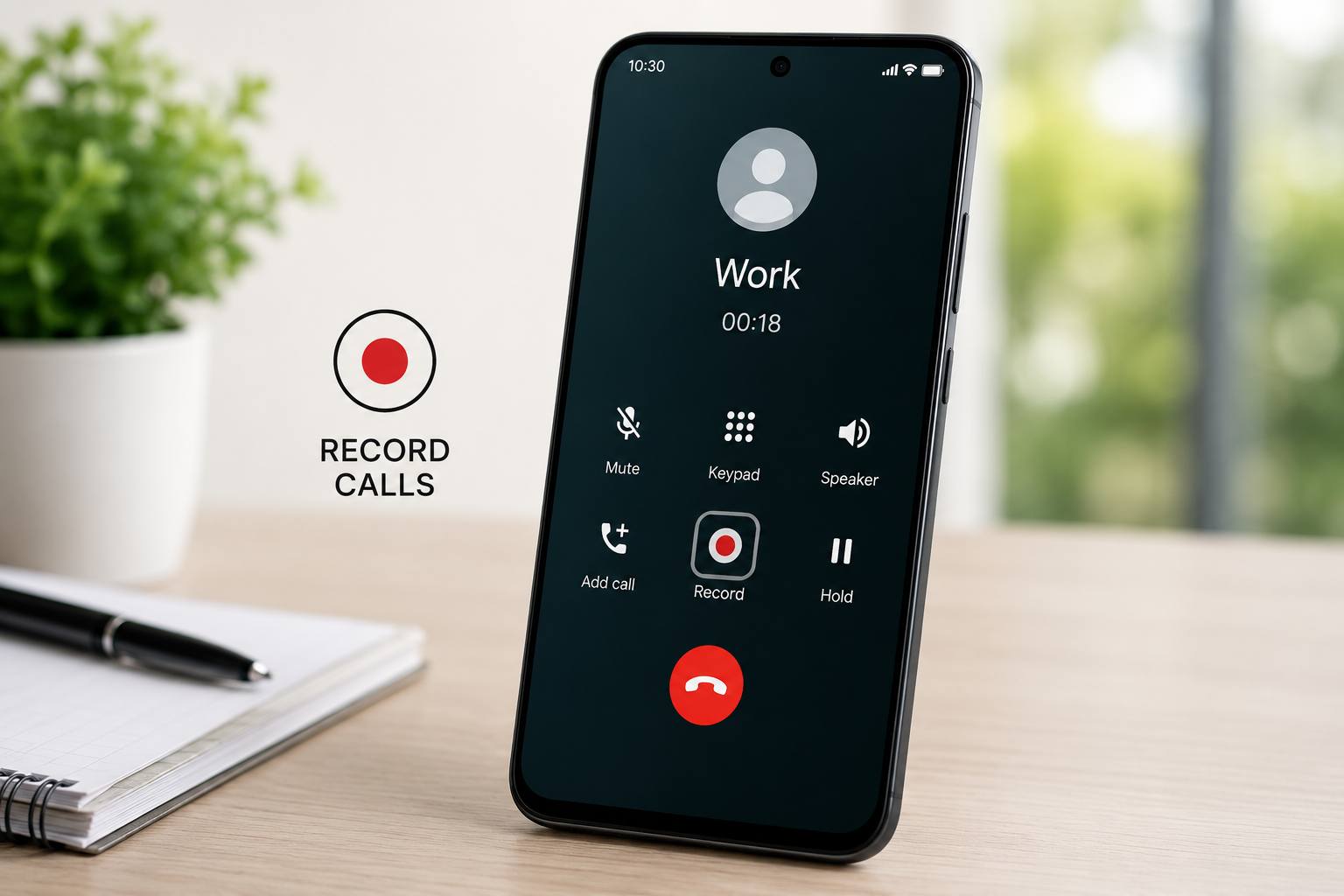
Method 1: Check During an Active Call
This is the easiest and most reliable way.
- Open your Phone app.
- Call someone you know or use another phone you own for testing.
Once the call is connected, look for options such as:
- Record
- Call Record
- Record Call
- More (⋮) → Record
If you see one of these options, your phone likely supports built-in recording.
Tip: Some devices only display the Record option after the call has been connected for a few seconds.
Method 2: Check Phone App Settings
Some manufacturers allow you to enable recording before making a call.
Open:
Phone → Settings
Look for options such as:
- Call Recording
- Record Calls
- Automatic Call Recording
- Record Unknown Numbers
- Record Selected Contacts
The exact names vary by manufacturer.
Method 3: Search Your Settings App
Some devices place recording settings outside the Phone app.
Open Settings and search for:
- Call Recording
- Record Calls
- Phone
- Dialer
If nothing appears, your device may not provide built-in recording.
Which Android Phones Commonly Include Built-In Call Recording?
There is no universal list because manufacturers change features over time and regional software matters.
However, the following table provides a general overview.
| Manufacturer | Built-in Recording Available? |
|---|---|
| Samsung | Available on some regional models |
| Xiaomi | Common in many regions |
| Redmi | Often available |
| POCO | Depends on software version |
| Vivo | Available on many devices |
| Oppo | Available on selected models |
| OnePlus | Available on some devices |
| Motorola | Limited availability |
| Google Pixel | Limited and region-dependent |
Important: The same model can behave differently depending on where it was sold and which software version it is running.
How to Record a Call If Your Phone Supports It
If your phone includes native recording, the process is usually simple.
Step 1
Open the Phone app.
Step 2
Make or receive a normal cellular call.
Step 3
After the call connects, look for the Record button.
Some phones display it immediately.
Others hide it under the More menu.
Step 4
Tap Record.
Depending on your phone, you may receive:
- a notification
- a confirmation message
- an announcement that the call is being recorded
Step 5
Continue your conversation normally.
Step 6
Tap Stop Recording if you want to end recording before the call finishes.
Otherwise, many phones automatically stop recording when the call ends.
What Happens After You Press Record?
One question rarely answered online is:
What actually happens inside the phone?
Most built-in systems do the following:
- Create a separate audio file.
- Save the recording locally.
- Associate the recording with the phone number.
- Store the recording inside the Phone app or internal storage.
- Display the recording in your recent call history.
Because recording is handled by system software, it usually consumes very little battery compared to third-party recording apps.
Where Are Recorded Calls Saved?
This is one of the most common questions users ask.
The answer depends on your phone manufacturer.
Possible storage locations include:
Inside the Phone App
Many manufacturers save recordings directly inside the recent call history.
Simply open:
Phone → Recent Calls
Select the recorded call.
Recorder App
Some phones automatically transfer recordings into the built-in Recorder application.
Internal Storage
Some devices create folders such as:
- CallRecordings
- Recordings
- PhoneRecord
- VoiceRecords
Folder names vary by manufacturer.
Files App
If you can’t find recordings in the Phone app, open your Files application and search for:
recordor
callMany recordings can be located this way.
Why Can’t I Find My Recorded Calls?
Several reasons may explain this.
The Recording Was Never Saved
The recording may have failed before completion.
You Changed Phones
Built-in recordings usually remain on the original device unless manually transferred.
The Recording Was Deleted
Storage cleanup tools may remove recordings if they are treated as temporary files.
The Phone App Was Reset
Clearing Phone app data can sometimes affect recording history.
Internal Storage Is Full
Some phones stop saving recordings when available storage becomes very low.
Automatic Call Recording
Some Android phones include automatic recording.
Instead of pressing Record every time, the phone starts recording according after your chosen settings.
Possible options include:
- Record every call
- Record unknown numbers
- Record selected contacts
- Record favorite contacts
These options vary between manufacturers.
If your phone doesn’t include them, they usually cannot be added through a hidden setting.
Should You Enable Automatic Recording?
Before enabling it, consider how often you actually need recordings.
Automatic recording can be useful for:
- Business conversations
- Customer support
- Interview notes
- Appointment confirmations
- Personal reminders
However, it also creates many audio files that consume storage over time.
Review your recordings periodically and delete files you no longer need.
Can Built-In Recording Affect Call Quality?
Normally, no.
Native recording is integrated into the phone’s software and is designed to operate alongside the calling function.
You should not notice significant differences in:
- Voice clarity
- Network quality
- Battery usage
- Call stability
If you do experience issues, they are more likely related to network conditions than the recording feature itself.
Why Recording Quality Can Differ
Even when recording is supported, audio quality isn’t always identical.
Factors include:
Network Signal
Poor reception can reduce voice clarity for both participants.
Microphone Noise Reduction
Some manufacturers process voice differently, affecting the recorded audio.
Voice Compression
Mobile carriers compress voice data to improve call efficiency, which can influence recording quality.
Speaker Volume
If recording relies on speaker output in certain situations, surrounding noise may also become part of the recording.
Common Mistakes Users Make
Looking Only in Settings
Many phones only display recording controls during an active call.
Assuming Every Phone Works the Same
Android manufacturers customize their software differently.
Following Old YouTube Tutorials
Android changes regularly.
Videos created several years ago may no longer reflect current software.
Expecting Google Phone to Unlock Recording
Installing a different Phone app doesn’t automatically enable built-in recording.
Forgetting About Software Updates
A feature available last year may move, change, or disappear after a system update.
Expert Tip: Create a Test Recording Before You Need One
One of the simplest yet most overlooked practices is to test your phone’s recording feature before relying on it for an important conversation.
Make a short test call to a trusted contact and confirm:
- The Record option appears.
- Recording starts successfully.
- Audio is clear.
- You know where the file is saved.
- You can play the recording back without issues.
Doing this in advance helps avoid surprises when recording is genuinely important.
Troubleshooting, Hidden Limitations, Myths & Expert Insights
Most articles stop after explaining where the Record button is located.
But in reality, that’s where most users begin facing problems.
If call recording isn’t working on your Android phone—even though it worked before or works on someone else’s device—the following sections will help you understand the possible reasons.
Why Did the Record Button Disappear?
One of the most common questions is:
“My phone used to record calls. Why did the Record button disappear?”
There isn’t a single answer because several changes can affect call recording over time.
1. A Software Update Changed the Phone App
Manufacturers regularly update their Phone apps.
These updates may:
- Move the Record button to another menu.
- Rename settings.
- Introduce new permissions.
- Remove unsupported features.
- Change the overall interface.
If you recently updated your phone, compare the Phone app settings before assuming the feature has been removed permanently.
2. Your Phone Switched to a Different Dialer
Some Android devices allow multiple Phone apps.
For example:
- Manufacturer Phone app
- Google Phone app
After restoring a backup or installing updates, your default dialer may change.
Even though both apps are used for making calls, their features can differ significantly.
3. Your Region Changed
A factory reset, firmware update, or service center repair may install software intended for a different region.
Since regional software often determines whether call recording is available, the feature may change even if the hardware stays the same.
4. Your Carrier Updated Device Settings
Carrier-branded phones sometimes receive software customized for that network.
After a carrier update, certain features—including call recording—may behave differently.
5. Your Organization Manages the Device
If your phone is issued by an employer, school, or organization, device management policies can disable features such as:
- Call recording
- Screen recording
- USB file transfer
- Unknown app installation
In this case, only the device administrator can change those restrictions.
Why Doesn’t the Other Person’s Voice Record Clearly?
This is another common issue.
Possible reasons include:
Weak Network Quality
Poor mobile signal affects both the conversation and the recording.
Voice Compression
Mobile networks compress voice data.
Different carriers use different voice codecs, which may slightly affect recorded audio quality.
Background Noise
If the recording depends on microphone input rather than internal audio, surrounding sounds may also be captured.
Bluetooth Audio Routing
Some Bluetooth devices process audio differently, which can influence how recordings are saved.
Does Bluetooth Affect Call Recording?
Sometimes.
When Bluetooth headphones or a car audio system is connected, the phone may handle audio through different communication profiles.
Depending on the phone and software version:
- Recording quality may remain unchanged.
- Recording may switch audio sources.
- Recording may not behave exactly like a normal handset call.
This varies between manufacturers.
Does Wi-Fi Calling Change Anything?
Wi-Fi Calling (VoWiFi) routes calls through an internet connection instead of relying only on the mobile network.
Whether this affects recording depends on how the manufacturer integrates Wi-Fi Calling with its Phone app.
Some phones treat Wi-Fi calls just like standard cellular calls, while others handle them differently.
If recording isn’t available during Wi-Fi Calling, switching to a regular cellular call may produce different results.
Can You Record WhatsApp, Telegram, Signal, or Messenger Calls Without an App?
Generally, no.
Built-in Android call recording is designed primarily for standard cellular phone calls.
Internet-based calling services such as:
- Telegram
- Signal
- Messenger
- Google Meet
- Zoom
use their own communication systems.
Because of this, the built-in Phone app usually cannot record these conversations.
Why Doesn’t Screen Recording Capture Phone Calls?
Many users assume screen recording can replace call recording.
Unfortunately, it doesn’t work that way.
A screen recorder is designed to capture:
- Screen activity
- User interface
- App navigation
It is not intended to reliably capture both sides of a phone conversation.
Even if screen recording captures your own voice through the microphone, it may not include the other participant’s audio.
Android Call Recording: How Things Changed Over Time
Android’s approach to call recording has evolved over the years.
Here’s a simplified overview:
| Android Version | General Trend |
|---|---|
| Android 9 | Third-party recording methods were more common. |
| Android 10 | Privacy protections became stronger. |
| Android 11 | Additional restrictions affected recording apps. |
| Android 12 | Manufacturers relied more on built-in solutions. |
| Android 13 | Regional implementation differences became more noticeable. |
| Android 14 | Privacy improvements continued. |
| Android 15 & later | Built-in support varies primarily by manufacturer and region. |
Instead of focusing on one Android version, it’s more useful to evaluate your specific phone model and software.
Why Storage Space Matters More Than You Think
Many users only check storage after something goes wrong.
Low storage can lead to:
- Incomplete recordings
- Recording failures
- Missing audio files
- Difficulty saving new recordings
Keeping several gigabytes of free space helps your phone operate more reliably.
What Happens to Recordings After a Factory Reset?
Unless you manually back them up, recordings stored in internal storage are typically erased during a factory reset.
Before resetting your phone, consider exporting important recordings to:
- A computer
- Cloud storage
- An external drive
- Another secure backup location
Can Built-In Call Recordings Be Edited?
Yes.
Once saved as audio files, recordings can usually be:
- Renamed
- Organized into folders
- Shared
- Backed up
- Trimmed using compatible audio editing tools
The exact options depend on your phone’s file management capabilities.
Common Myths About Android Call Recording
Let’s clear up some misconceptions.
Myth 1: Every Android Phone Has Hidden Call Recording
Reality: Support depends on the manufacturer, software, and region.
Myth 2: Installing Google Phone Enables Recording Everywhere
Reality: The Google Phone app doesn’t automatically unlock recording on unsupported devices.
Myth 3: Screen Recording Is the Same as Call Recording
Reality: Screen recording focuses on screen content, not reliable two-way call audio.
Myth 4: Rooting Is the Best Solution
Reality: Rooting changes your device’s security model, may void warranties, and isn’t necessary for most users. It also introduces risks that outweigh the benefits for many people.
Myth 5: Call Recording Is Illegal Everywhere
Reality: Laws vary by country and sometimes by region. Always understand the applicable rules before recording conversations.
Privacy and Responsible Use
Recording phone conversations involves privacy considerations.
Before recording a call:
- Understand the laws that apply where you live.
- Respect the privacy of everyone involved.
- Use recordings only for legitimate and lawful purposes.
- Store recordings securely, especially if they contain personal or sensitive information.
If you’re unsure about local requirements, seek guidance from the relevant authorities or legal resources.
Expert Tips Most Articles Never Mention
Test Before You Need It
Don’t wait until an important call to discover that recording isn’t available.
Keep Your Phone Updated
Software updates often improve stability and fix issues, even though features may occasionally change.
Review Recordings Regularly
Delete recordings you no longer need to save storage space and make important files easier to find.
Name Important Recordings
If your phone allows it, rename recordings with meaningful titles instead of relying on automatic filenames.
Create Backups
If a recording is important, don’t leave it stored only on your phone.
Maintaining a backup protects against accidental deletion or device failure.
Troubleshooting Checklist
If call recording isn’t working:
✔ Restart your phone.
✔ Confirm that your Phone app supports recording.
✔ Check for Phone app updates.
✔ Ensure you have enough storage space.
✔ Test with a normal cellular call instead of an internet-based call.
✔ Verify that your phone isn’t managed by an organization.
✔ Check whether a recent software update changed the feature.
✔ Look for recordings in both the Phone app and your Files app.
Frequently Asked Questions
Can every Android phone record calls without installing an app?
No. Built-in call recording depends on your phone manufacturer, software version, regional firmware, and the Phone app available on your device. Some Android phones include native call recording, while others do not.
How do I know if my Android phone supports built-in call recording?
Make a regular phone call and check whether a Record button appears during the conversation. You can also look for Call Recording settings inside your Phone app.
Is call recording available on Google Pixel phones?
Availability varies by software version, supported regions, and the Phone app features provided on your device. Not every Pixel phone offers the same recording options.
Why can’t I see the Record button?
Possible reasons include:
Your phone doesn’t support built-in recording.
You’re using a different Phone app.
Your regional software doesn’t include the feature.
A recent software update changed the Phone app.
Your device is managed by an organization.
Does Android automatically save recorded calls?
If built-in recording is supported, recordings are usually saved automatically after the call ends. The storage location depends on your phone manufacturer.
Where can I find recorded calls?
Depending on your device, recordings may appear in:
Phone app
Call History
Recorder app
Files app
Internal storage folders
Can I automatically record every phone call?
Some Android phones provide automatic call recording settings. Others only support manual recording, while some do not include recording at all.
Will updating Android remove call recording?
Sometimes.
Software updates can change Phone app features, regional settings, or manufacturer implementations.
Does screen recording capture phone calls?
Usually not
Screen recording is designed to capture screen activity rather than both sides of a phone conversation.
Can I record WhatsApp or Telegram calls without an app?
Built-in Android call recording generally works only for standard cellular calls. Internet-based calling services usually follow different recording rules.
Does Bluetooth affect call recording?
It can.
Bluetooth headsets and car audio systems may process audio differently depending on your phone and software.
Is built-in call recording better than third-party apps?
Generally, yes.
Native recording usually offers better compatibility, improved stability, and lower battery usage because it is integrated into the phone’s operating system.
Will factory resetting my phone delete recordings?
If recordings are stored in internal storage and haven’t been backed up, they are usually erased during a factory reset.
Does recording consume a lot of battery?
Built-in recording typically has very little impact on battery life compared to many third-party recording methods.
Why do two identical phones behave differently?
The software installed on each device may differ depending on:
Region
Firmware
Carrier customization
Phone app version
Even identical hardware can provide different features.
Final Thoughts
Recording phone calls on Android without installing another app isn’t simply about finding a hidden setting. It’s a combination of your phone manufacturer, software configuration, regional firmware, and the Phone app your device uses.
Instead of searching endlessly for a Record button that may never appear, start by understanding your phone’s capabilities. A few minutes spent checking your device can save hours of unnecessary troubleshooting.
If your phone includes built-in call recording, use it responsibly, keep important recordings backed up, and stay informed about software updates that may change available features.
Most importantly, remember that not all Android phones are designed the same. The best approach is to work with the features your device already provides rather than expecting every Android phone to behave identically.
Keep Exploring
Discover more reviews, guides, and comparisons to help you choose the right Android apps.
 How to Compare Similar Apps Like an Expert (27 Checks)
Published: 27 Jul 2026 • 01:23 PM Updated: 27 Jul 2026 • 01:23 PM Reading: 7 min read...
How to Compare Similar Apps Like an Expert (27 Checks)
Published: 27 Jul 2026 • 01:23 PM Updated: 27 Jul 2026 • 01:23 PM Reading: 7 min read...
 How to Choose the Right Android App Before Downloading: A Practical Decision Guide (2026)
Published: 25 Jul 2026 • 04:45 PM Updated: 25 Jul 2026 • 04:45 PM Reading: 7 min read...
How to Choose the Right Android App Before Downloading: A Practical Decision Guide (2026)
Published: 25 Jul 2026 • 04:45 PM Updated: 25 Jul 2026 • 04:45 PM Reading: 7 min read...
 How to Check If an App Shares Data With Third Parties
Published: 21 Jul 2026 • 11:30 PM Updated: 21 Jul 2026 • 11:34 PM Reading: 19 min read...
How to Check If an App Shares Data With Third Parties
Published: 21 Jul 2026 • 11:30 PM Updated: 21 Jul 2026 • 11:34 PM Reading: 19 min read...
 What Happens When You Delete an App? The Complete Android Guide
Published: 17 Jul 2026 • 12:09 AM Updated: 17 Jul 2026 • 12:09 AM Reading: 47 min read...
What Happens When You Delete an App? The Complete Android Guide
Published: 17 Jul 2026 • 12:09 AM Updated: 17 Jul 2026 • 12:09 AM Reading: 47 min read...