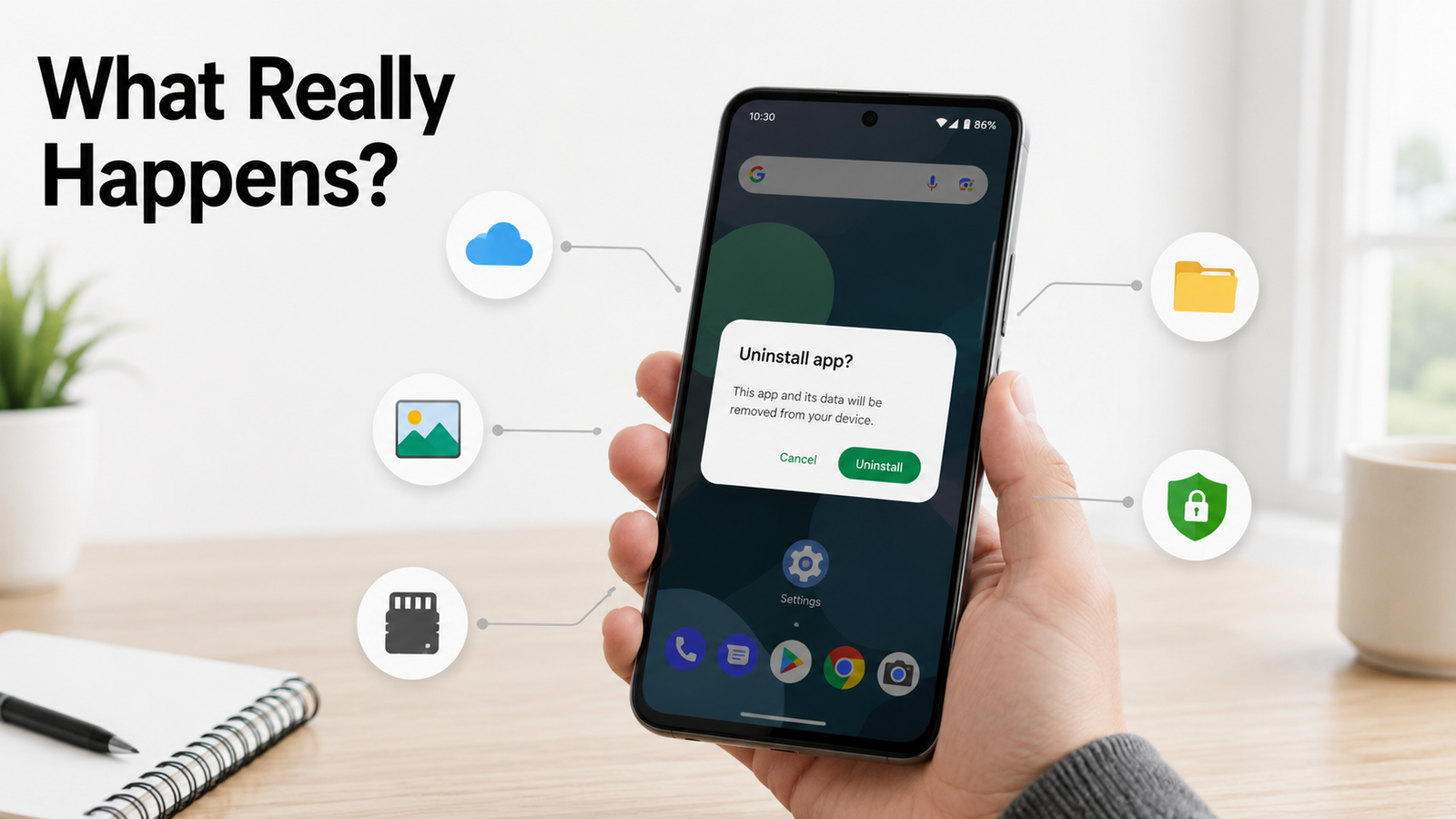
30 Second Quick Answer
Deleting an Android app removes the app from your device, stops its background activity, revokes its permissions, and usually deletes its private app data. However, it doesn’t always erase your photos, downloaded files, cloud backups, online account, or active subscription. What happens depends on where the app stores your information and how it manages your data. In this guide, you’ll learn exactly what Android removes, what stays behind, and the important steps to take before uninstalling any app.
Almost every Android user has deleted an app at some point. Sometimes it’s because storage is running low, sometimes an app becomes buggy after an update, and sometimes it’s simply because it hasn’t been opened in months.
Yet one question continues to confuse many people:
What actually happens after you tap “Uninstall“?
Most online articles answer this with a single sentence:
“The app is removed and its data is deleted.”
While that statement is partly true, it leaves out many important details that affect your files, subscriptions, cloud backups, accounts, privacy, and even your phone’s storage.
The reality is that uninstalling an app isn’t a single action. It’s a chain of events handled by Android, Google Play, and sometimes the app developer’s own servers. Depending on how the app was designed, deleting it may erase everything—or almost nothing except the app itself.
For example:
- A photo editing app may disappear, but every image you exported could still remain safely in your gallery.
- A game might be deleted today and restore your entire progress tomorrow after you reinstall it.
- A subscription can continue charging your card even though the app no longer exists on your phone.
- Some folders created by the app may remain in your storage, quietly taking up space long after the app is gone.
These situations often surprise users because uninstalling affects different types of data in different ways.
This guide explains what Android actually does behind the scenes, what information is removed, what stays behind, and how to decide whether uninstalling is really the right solution for your situation.
Instead of repeating common advice, we’ll focus on the details that are easy to overlook but can save you from losing important data or making unnecessary mistakes.
Table of Contents
What Does “Deleting an App” Actually Mean?
One reason people become confused is that the word delete is used to describe several different actions.
These actions may sound similar, but Android treats them very differently.
| Action | What It Does | App Still Installed? |
|---|---|---|
| Force Stop | Immediately closes the app until it’s opened again. | Yes |
| Clear Cache | Removes temporary files created to improve speed. | Yes |
| Clear Storage (Clear Data) | Resets the app almost like a fresh installation while keeping the app itself installed. | Yes |
| Disable | Turns off many built-in system apps without removing them completely. | Usually Yes |
| Uninstall | Removes the installed application package from your device. | No |
| Archive (supported on newer Android versions) | Removes most of the app while keeping certain installation information to make restoration faster. | Partially |
Understanding these differences helps prevent accidental data loss.
Many users uninstall an app when simply clearing its cache would solve the problem. Others clear app data without realizing it may remove offline files they wanted to keep.
The first step is always identifying what problem you’re trying to solve, because the best solution isn’t always uninstalling.
What Android Starts Doing the Moment You Tap “Uninstall”
The instant you confirm app removal, Android doesn’t simply erase one file.
Instead, it performs several coordinated tasks that happen within seconds.
Although you don’t normally see these processes, they work together to safely remove the application from your device.
Among other things, Android will:
- Stop every running process belonging to the app.
- End background services.
- Prevent future notifications from that app.
- Remove the application’s executable files.
- Remove the launcher shortcut.
- Disconnect widgets that depend on the app.
- Release the app’s reserved internal storage.
- Remove the app’s permission access from the operating system.
This entire process is designed to leave your phone in a stable state without affecting unrelated apps.
However, Android intentionally avoids touching many files that might belong to you rather than to the application itself. That’s why some documents, downloads, exported photos, or shared files can remain even after the app has disappeared.
This distinction—app files versus user-created files—is one of the biggest sources of confusion and will become important throughout the rest of this guide.
The Biggest Misunderstanding About Uninstalling Apps
Many people assume uninstalling works like throwing everything into a digital trash bin.
In reality, Android separates information into different categories.
Think of an app as a person renting an apartment.
When the tenant moves out:
- The furniture they rented may leave.
- Personal belongings might already have been moved elsewhere.
- Mail stored at another location still exists.
- Utility company records remain.
- The landlord still remembers the tenant lived there.
Similarly, uninstalling removes the application from your phone, but it doesn’t automatically erase every piece of information connected to that app.
Some information belongs to your phone.
Some belongs to your Google account.
Some belongs to the app developer.
Some belongs to cloud storage.
Some belongs to files you personally created.
Each category follows different rules.
Understanding these categories is much more useful than memorizing a simple “yes” or “no” answer.
Why the Same Uninstall Can Produce Different Results
One of the reasons people receive conflicting advice online is that no two Android apps store information in exactly the same way.
Imagine uninstalling these three apps:
- A calculator
- A cloud photo service
- An offline map application
Although you perform the same uninstall action, the outcome is completely different.
The calculator may disappear without leaving anything important behind.
The cloud photo app may remove only the application while every photo remains safely stored online.
The offline map app may delete the software but leave several gigabytes of downloaded maps if they were saved in a shared storage location.
This is why asking, “What happens when I delete an app?“ is only half the question.
The other half is:
“What kind of information does this particular app manage?”
Throughout this guide, we’ll explore how different categories of apps behave so you can predict what will happen before you uninstall them.
TNAPK Practical Insight
A common mistake is uninstalling an app immediately after encountering a problem.
In many cases, uninstalling is the last troubleshooting step, not the first.
For example:
- A slow app may only need its cache cleared.
- A crashing app may require a simple update.
- A storage issue may be caused by downloaded media rather than the app itself.
- A login problem may be related to your account instead of the installation.
Taking a minute to identify the real issue can save time and help you avoid losing offline data that could have been preserved.
What Android Removes Immediately After You Uninstall an App
Removing an app is much more than deleting its icon from the home screen.
Behind that single tap, Android performs several cleanup tasks designed to remove the app safely without affecting the rest of your phone. Some of these changes are visible immediately, while others happen quietly in the background.
Understanding these changes helps explain why some app problems disappear after uninstalling—and why others don’t.
1. The App’s Core Files Are Removed
Every Android app includes a collection of files that allow it to run.
These include:
- The application’s installation package
- Program code
- Resources such as icons and layouts
- Libraries used by the app
- Configuration files needed for startup
Once the uninstall process begins, Android removes these core components because they no longer serve any purpose.
This is why the app can no longer launch, even if some of its user-created files remain elsewhere on your device.
A useful way to think about it is this:
Android removes the engine of the app first. Whether any “cargo” remains depends on where that cargo was stored.
2. Every Running Process Is Stopped
Many apps don’t completely close when you leave them.
Some continue running quietly in the background to:
- Sync data
- Check messages
- Upload files
- Monitor location
- Refresh widgets
- Schedule reminders
Before Android removes the app, it terminates these running processes.
Otherwise, the operating system would have software trying to execute code that no longer exists.
This cleanup happens almost instantly.
For most users, the only visible sign is that the app disappears.
3. Background Services Are Disabled
Modern Android apps often depend on background services rather than the main app window.
Examples include:
- Fitness tracking
- Music playback
- File synchronization
- Smart home automation
- VPN connections
- Cloud backups
When the app is uninstalled, these services are removed as well.
This explains why:
- automatic backups stop,
- scheduled uploads stop,
- reminders disappear,
- automatic syncing ends.
Many users mistakenly think uninstalling “didn’t work” because cloud data is still available elsewhere. In reality, the background service has stopped—the cloud account simply still exists.
4. Notification Channels Disappear
Every installed app creates its own notification channels.
These channels control different types of alerts, such as:
- Messages
- Promotions
- Downloads
- System alerts
- Reminders
When the app is removed, Android deletes these channels because they no longer have a purpose.
That means:
- future notifications stop,
- notification settings disappear,
- custom notification sounds linked to that app are removed.
An overlooked detail is that your previous notifications in the notification shade may disappear as part of this cleanup because Android can no longer associate them with an installed application.
5. Home Screen Icons Are Removed
This seems obvious, but Android’s approach is more careful than many people realize.
Instead of simply deleting the icon, Android removes:
- Home screen shortcuts
- App drawer entry
- App search index references
- Quick-launch suggestions related to that installation
On some phones, recently used app suggestions may continue showing the app for a short time before the system refreshes its recommendations.
This temporary delay is normal and doesn’t mean the app is still installed.
6. Widgets Stop Working Immediately
Widgets rely on the installed app to provide information.
For example:
- weather widgets,
- calendar widgets,
- note widgets,
- music controls,
- battery widgets.
Without the app, the widget has nothing to communicate with.
Android therefore removes or disables these widgets.
Depending on the phone manufacturer, you may notice:
- a blank area,
- a placeholder,
- a message asking you to remove the widget,
- automatic removal from the home screen.
Many users think the widget is “broken.”
In reality, it’s simply missing the software that powered it.
7. Android Revokes Every Permission
One of Android’s strongest privacy protections happens automatically.
When an app disappears, Android removes the permissions granted to that installation.
This includes access such as:
- Camera
- Microphone
- Contacts
- SMS
- Call logs
- Storage
- Location
- Calendar
- Bluetooth
- Nearby devices
This means the app can no longer request information from your phone because the application itself no longer exists.
However, this does not erase information the app already collected before it was uninstalled. If data had previously been synced to the developer’s servers, uninstalling won’t automatically remove it from those servers. Managing online account data usually requires changing settings within your account or contacting the service provider.
8. Scheduled Jobs Are Cancelled
Many Android apps quietly schedule future work.
Examples include:
- syncing overnight,
- checking for new content,
- downloading updates,
- cleaning temporary files,
- sending reminders,
- refreshing widgets.
Android stores these schedules separately from the app interface.
During uninstall, Android cancels these scheduled jobs.
This saves battery because the operating system no longer wastes resources trying to wake an app that isn’t installed.
Most users never notice this process, but it’s one reason uninstalling unused apps can slightly reduce unnecessary background activity.
9. App Shortcuts Are Cleaned Up
Modern Android versions support shortcuts that appear when you long-press an app icon.
For example:
- Open Camera
- Start Navigation
- Scan QR Code
- Compose Email
- Search Music
These shortcuts are registered with Android when the app is installed.
Once the app is removed, Android unregisters them automatically.
This prevents broken shortcuts from remaining in the launcher.
10. Temporary Working Files Are Usually Removed
Apps constantly create temporary files while they run.
Examples include:
- downloaded thumbnails,
- cached images,
- temporary databases,
- processed media,
- unfinished downloads.
Most of these temporary files are stored inside the app’s private storage area.
When the app is uninstalled, Android generally removes this private workspace as part of the cleanup process.
However, not every temporary-looking file is actually temporary. If an app deliberately saved files to shared folders like Downloads, Pictures, or Documents, Android usually leaves those files alone because they are treated as user content rather than disposable app data.
An Overlooked Detail: Android Removes “Trust,” Not Just Files
Here’s something rarely discussed.
When you install an app, Android builds a relationship with it over time.
The system learns things such as:
- which permissions you’ve approved,
- battery optimization choices,
- notification preferences,
- default app associations,
- background execution rules.
Uninstalling doesn’t just remove files—it breaks that trusted relationship.
If you install the app again later, Android often treats it like a new installation.
You’ll usually need to:
- grant permissions again,
- approve notifications,
- choose default settings,
- configure preferences.
This is why reinstalling an app can sometimes feel like starting over, even if your account or cloud data returns after signing in.
TNAPK Practical Insight
Many people judge an uninstall by asking:
“Did the app disappear?”
A better question is:
“Did Android remove everything that belonged only to the app?”
In most cases, the answer is yes.
But uninstalling is intentionally conservative. Android tries to remove the application while avoiding accidental deletion of your personal documents, exported photos, downloaded files, and cloud-based information.
That design protects users—but it also explains why uninstalling doesn’t always produce the clean slate people expect.
What Doesn’t Get Deleted? The Files Many Users Forget About
One of the biggest surprises after uninstalling an app is discovering that not everything disappears.
You may delete a photo editor and still find your edited pictures.
You may remove a document scanner and still have every scanned PDF.
You may uninstall a music player and notice your downloaded songs are still available.
This isn’t a bug.
It’s Android doing exactly what it was designed to do.
The operating system tries to distinguish between files that belong to the app and files that belong to you. If Android treated both the same way, uninstalling a simple app could accidentally erase years of personal photos, recordings, or documents.
That separation is one of Android’s most important safety features.
The Two Types of Storage Every User Should Understand
A simple way to understand uninstalling is to imagine your phone has two storage areas for every app.
1. The App’s Private Workspace
This area is created specifically for the app.
It usually contains:
- internal databases
- cached files
- login sessions
- app settings
- temporary downloads
- internal working files
Because this space belongs only to the app, Android normally removes it during uninstall.
2. Shared Storage
This area belongs to you, not the app.
Apps can save files here because users expect to keep them even if the app is removed.
Examples include:
- Photos
- Videos
- Music
- PDFs
- Word documents
- Downloads
- Voice recordings
Android usually leaves these files untouched.
Think of it this way:
Uninstalling the tool shouldn’t automatically destroy the work created with that tool.
Why Your Photos Usually Stay
This is one of the most common questions people ask.
Suppose you edit 500 vacation photos using a photo editing app.
Once you export those images to your Gallery, they become your files.
Deleting the editing app later doesn’t normally delete those exported photos because Android no longer considers them part of the app itself.
However, there’s an important exception.
If you saved unfinished editing projects that exist only inside the app’s private workspace, those projects may disappear after uninstalling.
That’s why many professional editing apps offer an Export option in addition to simply saving a project.
TNAPK Practical Tip
Before uninstalling any creative app—such as a photo editor, video editor, note-taking app, or drawing app—check whether your work has been exported or is still stored as an editable project inside the app.
A finished video in your Gallery is usually safe.
An unfinished editing project may not be.
Downloads Don’t Always Belong to the App
Many people assume downloaded files disappear together with the app.
In reality, it depends on where the app stored them.
For example:
A podcast app might download episodes into:
- its own private storage, or
- the public Downloads folder.
The first type is usually removed.
The second usually remains.
The same applies to:
- offline manuals
- exported invoices
- downloaded certificates
- PDF books
- wallpapers
- templates
This is why two apps with similar features can behave differently after uninstalling.
Why Empty Folders Sometimes Remain
After deleting an app, some users notice an empty folder with the app’s name.
For example:
Downloads/
AppName/

Pictures/
AppName/

Documents/
AppName/
This often leads people to believe the uninstall “failed.”
In many cases, the app has been removed successfully—the folder simply wasn’t deleted because Android avoids removing folders that may contain user content.
Sometimes the folder becomes empty after uninstalling.
Sometimes it still contains exported files.
Both situations are normal.
Shared Files Are Treated Differently for a Reason
Imagine this situation.
A PDF scanning app saves tax documents into:
Documents/Taxes/If uninstalling automatically erased that folder, users could lose years of important paperwork without warning.
Instead, Android generally assumes that anything deliberately placed into shared storage belongs to the owner of the phone.
This conservative approach favors protecting personal files over aggressively cleaning storage.
Why Some Storage Doesn’t Return Immediately
Another common misunderstanding is expecting storage numbers to update the instant an app is removed.
Sometimes they do.
Sometimes they don’t.
Android may need a little time to:
- recalculate available storage,
- update media indexes,
- refresh storage statistics,
- complete background cleanup tasks.
This delay can make it appear as though uninstalling recovered less space than expected.
In most cases, the storage display catches up automatically after the system finishes its housekeeping.
TNAPK Practical Tip
If you uninstall a large app and don’t immediately see additional free storage, avoid uninstalling more apps out of frustration.
Instead:
- wait a few minutes,
- restart the phone if necessary,
- check storage again.
The storage report may simply not have refreshed yet.
Exported Files Follow Different Rules Than Working Files
This distinction is rarely explained clearly.
Suppose you use a document scanner.
Inside the app, you have:
- scanned pages waiting for editing,
- finished PDF exports.
The unfinished scans often remain inside the app’s private workspace.
The exported PDFs usually live in shared storage.
After uninstalling:
✔ Exported PDFs often remain.
✖ Unfinished editing sessions may disappear.
The same principle applies to many other apps:
- drawing apps,
- audio editors,
- video editors,
- design tools,
- note-taking software.
Understanding the difference helps avoid accidental loss of work.
Hidden Leftovers Are Not Always Junk
Some advanced users manually browse storage after uninstalling and discover folders created by old apps.
Their first instinct is often:
“Everything left behind is useless.”
That’s not always true.
A leftover folder could contain:
- exported projects,
- backup files,
- templates,
- downloaded fonts,
- offline maps,
- custom presets,
- recovery files.
Deleting these folders without checking their contents can permanently remove information that Android intentionally preserved.
The “Invisible Ownership” Rule
Here’s a useful way to think about uninstalling.
Instead of asking:
“Where is this file?”
Ask:
“Who owns this file?”
If Android considers the file to belong to the application, it’s usually removed.
If Android considers the file to belong to you, it usually stays.
This simple idea explains most of the seemingly inconsistent behavior people experience after uninstalling apps.
Why Two Similar Apps Can Behave Completely Differently
This often confuses users.
Imagine uninstalling two video editing apps.
One removes every unfinished project.
The other restores everything after reinstalling.
Neither app is necessarily wrong.
They simply made different design choices.
Developers decide:
- where projects are stored,
- whether cloud sync is enabled,
- whether exports use shared storage,
- whether backups are created automatically.
Because of this, the uninstall experience depends not only on Android but also on how the app developer chose to manage user data.
TNAPK Practical Insight
One of the biggest mistakes people make is treating all apps as if they manage files the same way.
They don’t.
A calculator app, a banking app, a cloud storage app, and a professional video editor may all be uninstalled using the same button, but the information they leave behind can be completely different.
Before uninstalling, think about what the app actually stores, not just what the app does.
That small shift in thinking can prevent accidental data loss and save you hours of recovery work.
What Happens to Your Online Data, Account, and Subscription?
Deleting an app only affects what is installed on your phone.
It does not automatically erase information stored on the internet.
Many Android apps work as gateways to online services. When you uninstall the app, you remove the gateway, but the service itself usually continues to exist.
Think of it like removing a TV remote. The remote is gone, but the television is still there.
This is why uninstalling an app often has very little effect on your online account.
Your Account Usually Continues to Exist
One of the biggest misconceptions is:
“If I uninstall the app, my account will disappear too.”
In most cases, it won’t.
For example, if you uninstall:
- an email app,
- a social media app,
- a streaming service,
- a shopping app,
- a banking app,
your account generally remains active on the company’s servers.
When you install the app again and sign in with the same account, your information often returns because it was never stored only on your phone.
Uninstalling removes access from the device, not the account itself.
If you actually want your account deleted, you usually need to use the service’s account deletion option or contact the provider, depending on their policies.
Cloud Data Doesn’t Live on Your Phone
Many apps automatically synchronize information with cloud servers.
Examples include:
- notes,
- contacts,
- photos,
- passwords,
- bookmarks,
- saved preferences,
- game progress.
When synchronization is enabled, uninstalling the app doesn’t automatically remove those online copies.
Imagine writing a document in cloud storage.
Deleting the app from your phone doesn’t erase the document because the file exists on another system.
This is also why many users are surprised when reinstalling an app immediately restores everything after they sign in again.
TNAPK Practical Tip
Before uninstalling an app, ask yourself:
“Is my important information stored only on this phone, or is it synchronized elsewhere?”
If you’re not sure, check the app’s backup or sync settings first. Knowing where your data lives is much safer than assuming it will always return after reinstalling.
Reinstalling Can Feel Like Nothing Was Ever Deleted
Some users expect reinstalling an app to create a completely fresh experience.
Instead, they discover:
- previous settings,
- saved documents,
- profile pictures,
- preferences,
- chat history,
- game progress,
all returning within minutes.
This isn’t because Android secretly kept the app.
It’s because the app downloaded your information again after you signed in.
The uninstall removed the local software, but the online service still remembered your account.
Subscriptions Usually Continue
This is one of the most expensive misunderstandings users can make.
Some people believe:
“I deleted the app, so I won’t be charged anymore.”
Unfortunately, that’s often not how subscriptions work.
A subscription is normally linked to:
- your Google account,
- your payment method,
- or your account with the service provider.
Deleting the app usually doesn’t cancel the billing agreement.
This means:
- the app disappears,
- but the subscription may continue until you cancel it through the appropriate subscription management page or directly with the service provider.
Always review active subscriptions before assuming uninstalling has ended a paid service.
Notifications Stop, but Emails May Continue
Once the app is removed, Android can no longer deliver notifications from that app.
However, that doesn’t necessarily stop communication from the company.
For example, you might still receive:
- order confirmations,
- newsletters,
- password reset emails,
- billing notices,
- promotional emails,
because these are sent through email services, not through the installed app.
Deleting an app doesn’t automatically unsubscribe you from mailing lists.
If you no longer want those messages, you’ll usually need to adjust your communication preferences with the service.
Your Purchase History Usually Remains
Many apps keep records of:
- previous purchases,
- premium upgrades,
- licenses,
- digital products,
- subscriptions.
These records are generally stored online rather than only on your phone.
That’s why reinstalling an app often restores paid features after you sign in with the same account.
Removing the app doesn’t normally erase your purchase history.
Does Google Play Forget the App?
No.
Google Play generally keeps a record of apps associated with your Google account, such as those you’ve previously installed or obtained.
This history can make it easier to:
- reinstall apps,
- restore previous purchases,
- view past downloads,
- recognize apps you’ve used before.
Keeping this history doesn’t mean the app is still installed on your phone.
It simply helps Google Play manage your app library across devices linked to the same Google account.
Does Uninstalling Improve Privacy?
The answer depends on what kind of privacy concern you have.
Uninstalling usually improves device privacy because:
- the app can no longer request camera access,
- location access stops,
- microphone permissions are removed,
- background activity ends.
However, uninstalling doesn’t automatically erase information the company already collected while you were using the service.
If your goal is to reduce your digital footprint, uninstalling may be only one step. You may also need to review your account settings, remove stored data where available, or close the account if you no longer use the service.
The exact options vary between services.
One Device, Multiple Devices
Many people now use the same account across:
- a phone,
- a tablet,
- another Android phone,
- or a web browser.
Uninstalling the app from one device usually affects only that device.
If you’re still signed in elsewhere, your account may continue to function normally on those other devices.
This is another reason uninstalling shouldn’t be confused with deleting an account.
Shared Devices Need Extra Attention
If you’re removing an app before selling or giving away your phone, uninstalling alone may not always be enough.
Consider whether the app is still signed in elsewhere or whether it contains information synchronized with your account. Depending on the service, you may also want to:
- sign out of the app before removing it,
- review connected devices,
- revoke access from your account settings if the service offers that option.
These extra steps help ensure the next owner of the device can’t access your information if the phone isn’t properly reset.
Online Data Has Its Own Life Cycle
A useful way to think about modern apps is this:
There are two separate worlds.
On your phone
- The app
- Local settings
- Temporary files
- Cached content
- Offline data
Online
- Your account
- Purchases
- Cloud backups
- Synced documents
- Subscription status
- Profile information
Uninstalling mainly affects the first world.
The second usually continues unless you take separate action through the service itself.
Understanding this distinction helps explain why reinstalling an app can sometimes feel like meeting an old friend—it remembers far more than your phone does.
TNAPK Practical Insight
Many people ask:
“Will uninstalling the app delete my data?”
A more useful question is:
“Where is my data actually stored?”
If it’s only on your phone, uninstalling may remove it.
If it’s synchronized to the cloud, it may return after you sign in again.
If it’s stored on the company’s servers, uninstalling alone usually won’t erase it.
Thinking about where the information lives—rather than simply whether the app is installed—is one of the smartest habits an Android user can develop.
Why Didn’t You Get All Your Storage Back?
One of the most common disappointments after uninstalling an app is checking the storage screen and thinking:
“I deleted a 2 GB app. Why did I only get 900 MB back?”
At first glance, it feels like something went wrong.
In most cases, nothing is broken.
The difference comes from how Android measures storage and where different types of files are actually stored.
An app’s reported size is only one part of the storage picture. By the time you’ve used an app for weeks or months, it may have created temporary files, downloaded content, exported documents, or cloud-related data that aren’t all treated the same during uninstall.
Understanding this makes storage behavior much less confusing.
App Size Is More Than One Number
When Android shows an app’s storage usage, several categories may be involved.
These can include:
- the installed application itself,
- temporary cached files,
- app-specific data,
- downloaded resources,
- user-created content.
Not every category is removed in exactly the same way.
Some disappear during uninstall.
Others remain because they belong to you rather than the application.
That’s why the recovered storage doesn’t always match the number you expected.
Downloaded Content Can Change the Picture
Imagine installing an offline navigation app.
The app itself might be relatively small, but over time you download large offline maps.
Whether those maps disappear during uninstall depends on where the developer chose to store them.
The same idea applies to:
- language packs,
- offline dictionaries,
- downloaded playlists,
- educational course material,
- design assets,
- template libraries.
The uninstall button removes the app, but downloaded resources may follow different rules depending on how they were saved.
Exported Files Don’t Count as “App Waste”
Suppose you use a document scanner every week.
After scanning hundreds of receipts, you export them as PDFs into your Documents folder.
Later, you uninstall the scanning app.
Those exported PDFs usually remain because Android sees them as your documents, not as disposable app files.
This means storage is still being used—but by files you intentionally created.
Deleting the app shouldn’t erase your work.
TNAPK Practical Tip
If storage doesn’t increase as much as expected, don’t assume the uninstall failed.
Instead, ask:
“Am I looking at the size of the app, or the size of the files I created with the app?”
Those are often very different things.
Storage Reports Aren’t Always Instant
Another overlooked detail is that Android doesn’t constantly recalculate every storage statistic in real time.
After uninstalling a large app, the system may need a short period to:
- update storage indexes,
- refresh media databases,
- complete background cleanup,
- recalculate available space.
During that time, the storage screen may briefly show outdated numbers.
This delay is usually temporary and resolves automatically.
Restarting the device isn’t always necessary, but it can prompt the operating system to refresh storage information on some devices.
Cache Isn’t the Same as Personal Data
Many users think of cache as “hidden junk.”
In reality, cache is simply temporary working data that helps apps load faster.
Examples include:
- image thumbnails,
- recently viewed pages,
- temporary downloads,
- preview files.
Android generally removes an app’s private cache during uninstall.
However, if the app allowed you to save files into shared storage, those files aren’t considered cache and normally remain.
This distinction explains why uninstalling removes some data immediately while leaving other files untouched.
Why Different Phones Show Different Numbers
Two people can uninstall the same app and see different storage results.
Why?
Because no two phones are used in exactly the same way.
Factors that influence storage include:
- how long the app was installed,
- how much offline content was downloaded,
- whether cloud sync was enabled,
- how many files the user created,
- whether exported files were saved outside the app.
The uninstall process may be identical, but the amount of recoverable storage can be completely different.
That’s why comparing storage recovery between devices isn’t very meaningful.
“Large App” Doesn’t Always Mean “Large Recovery”
It’s tempting to think:
Bigger app = more free storage after uninstalling.
Not necessarily.
A large game may remove several gigabytes because most of its data lives inside the app.
A productivity app with years of exported documents might free much less space because your documents remain safely stored.
The number next to the app tells only part of the story.
The location of the data matters just as much.
Don’t Rush to Delete Leftover Folders
After uninstalling, some users open a file manager and start deleting every folder that has the app’s name.
That approach can solve storage problems—but it can also create new ones.
Before removing a leftover folder, consider questions such as:
- Does it contain exported files?
- Are there backup copies inside?
- Could another app still use these files?
- Would you want these files if you reinstall the app later?
A quick inspection takes only a minute and can prevent accidental loss of important information.
TNAPK Practical Tip
A useful habit is to treat leftover folders the same way you would treat a USB drive.
Don’t delete them simply because you don’t recognize the folder name.
Open the folder, see what it contains, and decide whether the contents still matter.
A few seconds of checking is much safer than trying to recover deleted files later.
Storage Problems Aren’t Always App Problems
People often begin uninstalling apps as soon as they receive a “Storage Almost Full” warning.
However, the biggest space users on many phones aren’t apps at all.
Depending on your usage, storage may be consumed by:
- videos you’ve recorded,
- photos,
- downloaded movies,
- messaging app media,
- large PDF collections,
- duplicate files,
- forgotten downloads.
Uninstalling apps may help, but it isn’t always the fastest way to recover meaningful space.
A quick review of your storage categories often reveals much larger opportunities.
Think in Categories, Not Gigabytes
Here’s a more practical way to manage storage.
Instead of asking:
“Which app is biggest?”
Ask:
“What type of data is using my storage?”
For example:
- Is it apps?
- Photos?
- Videos?
- Downloads?
- Offline maps?
- Documents?
This mindset helps you solve storage problems more efficiently than uninstalling apps at random.
A Smarter Way to Decide Before Uninstalling
Before removing any large app, consider these questions:
- Will uninstalling actually solve the problem I’m trying to fix?
- Does the app store important offline content?
- Have I exported any work I still need?
- Are there backups available?
- Would clearing cache be enough instead?
- Will I simply reinstall the app tomorrow?
Sometimes uninstalling is the right choice.
Sometimes it’s only a temporary fix that creates extra work later.
Making that decision consciously leads to better long-term storage management.
TNAPK Practical Insight
One of the biggest myths in Android is:
“If I delete enough apps, my phone will always have plenty of space.”
In reality, phones often fill up because of the content created around apps, not the apps themselves.
An app may occupy only a few hundred megabytes, while the photos, videos, documents, downloads, and media generated through that app consume several gigabytes over time.
Managing storage effectively isn’t just about removing software—it’s about understanding what is truly taking up space.
Should You Clear Cache, Clear Data, Disable, Archive, or Uninstall?
One of the biggest mistakes Android users make is treating every app problem the same way.
The phone feels slow?
Uninstall the app.
The app crashes?
Uninstall it.
Storage is full?
Delete everything.
While uninstalling sometimes solves the problem, it is often the most disruptive option because it removes the app completely. In many situations, a much smaller action fixes the issue without forcing you to sign in again or reconfigure settings.
Instead of memorizing technical definitions, it helps to think about your goal.
Ask yourself:
“What problem am I actually trying to solve?”
Once you know the goal, choosing the right action becomes much easier.
If the App Is Just Running Slowly
Apps naturally build temporary files over time. These files are designed to make the app load faster, but occasionally they become outdated or inefficient.
If the app:
- opens slowly,
- takes longer than usual to load,
- behaves sluggishly after an update,
clearing the cache may be enough.
This removes temporary working files while leaving your account, settings, and personal information intact.
In many cases, it’s the least disruptive troubleshooting step.
If the App Keeps Crashing
Crashes can happen for several reasons:
- damaged local settings,
- incompatible updates,
- corrupted temporary data,
- software bugs.
A good troubleshooting order is:
- Check whether an update is available.
- Restart the phone.
- Clear the app’s cache.
- If the issue continues, consider clearing app data.
- Reinstall only if the previous steps don’t resolve the problem.
Following this sequence avoids unnecessary work and reduces the chance of losing offline information.
If Storage Is Your Only Concern
Many people immediately uninstall apps when storage runs low.
However, ask yourself:
Do I actually use this app?
If the answer is yes, uninstalling may create more inconvenience than benefit.
Consider alternatives first:
- remove unnecessary downloads,
- delete duplicate media,
- clear temporary cache where appropriate,
- review large files stored elsewhere.
If you rarely use the app, uninstalling may be the better long-term choice.
The key is matching the solution to the problem—not automatically choosing the biggest action.
If You Want a Fresh Start
Sometimes an app becomes so misconfigured that starting over is easier than fixing individual settings.
In that situation, clearing the app’s data can be useful.
Think of it as resetting the app to the condition it was in immediately after installation.
You’ll usually need to:
- sign in again,
- configure preferences again,
- restore offline information if necessary.
Before doing this, make sure you understand whether the app stores important information only on your device or synchronizes it online.
TNAPK Practical Tip
A “fresh start” sounds appealing, but it’s worth checking whether the app contains information that hasn’t been backed up.
For example:
- unfinished documents,
- offline notes,
- downloaded courses,
- saved drafts.
Resetting or uninstalling without checking first may remove information that can’t be recreated easily.
If You Never Use the App
Some apps remain installed for months without ever being opened.
They may:
- occupy storage,
- appear in search results,
- clutter the app drawer.
If you’re confident you no longer need the app, uninstalling is usually the cleanest option.
However, before removing it, consider whether it contains:
- authentication codes,
- offline files,
- important records,
- purchased content.
Unused doesn’t always mean unimportant.
If It’s a Built-In System App
Many phones include pre-installed applications that can’t always be removed completely.
In these cases, Android may offer a Disable option instead of Uninstall.
Disabling generally prevents the app from:
- launching,
- updating,
- appearing in normal use.
This can reduce clutter without attempting to remove software that is integrated into the operating system.
Whether a particular app can be disabled depends on the phone manufacturer and Android version.
If Your Phone Supports App Archiving
Some newer Android versions support app archiving.
Archiving is designed for apps you don’t use often but don’t want to remove completely.
Instead of behaving exactly like an uninstall, archiving removes much of the installed app while making it easier to restore later.
Availability depends on your Android version, device manufacturer, and how the app supports this feature.
If your device doesn’t offer archiving, you won’t see this option.
Don’t Uninstall Out of Habit
Many experienced Android users develop a simple habit:
Whenever something feels wrong—
uninstall.
While this occasionally works, it can also create unnecessary work.
Every reinstall may require:
- logging in again,
- restoring preferences,
- downloading offline content,
- granting permissions,
- configuring notifications.
If the original problem could have been solved with a smaller action, uninstalling simply adds extra steps.
A Practical Decision Framework
Instead of memorizing technical terms, use this simple approach.
Your goal: The app is slow
Start with clearing temporary data before considering more disruptive options.
Your goal: The app keeps crashing
Check for updates, restart the device, then move toward progressively stronger troubleshooting steps if needed.
Your goal: The app uses too much storage
Find out what is using the storage first. It may be downloaded content rather than the app itself.
Your goal: You never use the app
Uninstalling is often appropriate, provided you don’t need anything stored inside it.
Your goal: You want maximum privacy
Removing the app helps stop future access from that installation, but remember to review your online account separately if you also want to remove stored information.
The Cost of Choosing the Wrong Option
The wrong troubleshooting step doesn’t just waste time.
It can also lead to:
- unnecessary downloads,
- lost offline work,
- repeated logins,
- forgotten settings,
- confusion about missing files.
A few seconds spent choosing the right action often saves much more time later.
The Best Android Habit You Can Build
One simple habit separates confident Android users from frustrated ones.
Before tapping any button, pause and ask:
“What outcome am I expecting?”
If you expect:
- more storage,
- better performance,
- fewer crashes,
- improved privacy,
make sure the action you’re choosing actually addresses that goal.
Android provides several tools because different problems require different solutions.
Using the smallest effective action is often the smartest approach.
TNAPK Practical Insight
Many Android guides teach users what each button does.
A better approach is teaching users when to use each button.
Understanding the purpose behind each action leads to better decisions than memorizing technical definitions.
That’s the difference between simply operating a phone and understanding how it works.
Real-World Examples: What Actually Happens When You Delete Different Types of Apps?
One reason uninstalling feels unpredictable is that not all apps are built the same way.
A calculator, a messaging app, a banking app, and an offline navigation app may all disappear when you tap Uninstall, but what happens to your information afterward can be completely different.
Rather than asking:
“What happens when I delete an app?”
A better question is:
“What kind of app am I deleting?”
Let’s look at some everyday examples.
Scenario 1 – Deleting a Messaging App
Messaging apps often store a mixture of:
- conversations,
- photos,
- videos,
- voice messages,
- documents,
- account information.
Some of this information may exist only on your phone.
Some may be synchronized with online services.
Some may depend on your own backup settings.
Because every messaging service manages data differently, uninstalling without checking your backup options first can be risky.
Before removing a messaging app, ask yourself:
- Have I backed up important conversations if the app supports backups?
- Are there photos or documents I still need?
- Do I understand how this particular service restores information?
The safest habit is to verify your backup status before uninstalling rather than assuming everything will return automatically.
TNAPK Practical Tip
Don’t wait until after uninstalling to discover whether your chats were backed up.
Checking takes less than a minute.
Recovering lost conversations may not be possible.
Scenario 2 – Deleting a Banking App
Many people worry that uninstalling a banking app could affect their bank account.
In most cases, uninstalling the app doesn’t close your account.
Your money, account records, and banking relationship continue to exist with the bank.
However, removing the app usually means you’ll need to:
- install it again,
- verify your identity,
- sign in again,
- complete any required security checks.
If the app stores statements or documents for offline viewing, check whether you need copies before uninstalling.
Scenario 3 – Deleting a Photo Editing App
This situation often confuses users.
There are usually two kinds of content:
Finished exports
These are typically saved into your Gallery or another shared folder.
They usually remain after uninstalling.
Unfinished projects
Draft edits, layers, templates, and works in progress may be stored inside the app itself.
These may not survive uninstalling if they haven’t been exported or backed up.
Many people only discover this difference after losing an unfinished project.
Scenario 4 – Deleting an Offline Navigation App
Navigation apps often allow users to download maps for areas without internet access.
Those maps may consume several gigabytes.
Whether uninstalling removes those maps depends on where they were stored and how the developer designed the app.
If you frequently travel in areas with limited connectivity, remember that reinstalling may require downloading those maps again.
Scenario 5 – Deleting a Game
Games often contain three different types of information.
Progress stored only on the device
May disappear after uninstalling.
Progress synchronized online
May return after signing back in.
Downloaded game resources
May need to be downloaded again after reinstalling.
Before deleting a game you’ve invested many hours in, check whether it supports cloud synchronization or another backup method.
TNAPK Practical Tip
Many players assume creating an account automatically protects game progress.
Not every game synchronizes progress in the same way.
If the game provides a backup or cloud-sync option, verify that it’s enabled before uninstalling.
Scenario 6 – Deleting a Password Manager
Password managers deserve extra attention.
Although many synchronize encrypted information online, some also store important local data.
Before uninstalling, make sure you:
- know your master password,
- understand how you’ll access your passwords afterward,
- have another trusted way to sign in if needed.
Being locked out of your own password manager can create far more inconvenience than the uninstall itself.
Scenario 7 – Deleting a Cloud Storage App
Removing a cloud storage app usually affects the app—not the files stored in your online account.
However, locally downloaded offline copies may no longer be available through the app once it’s removed.
If there are documents you need while traveling or without internet access, ensure you have another way to access them before uninstalling.
Scenario 8 – Deleting a Streaming App
Streaming apps often separate:
- your account,
- your subscription,
- downloaded offline content.
The downloaded content may disappear because it was licensed for offline viewing through the app.
Your subscription, however, may continue until it’s cancelled through the appropriate billing process.
Deleting the app and cancelling the subscription are two separate actions.
Scenario 9 – Deleting an Authenticator App
Authenticator apps are different from most other apps because they may protect access to many of your online accounts.
If you uninstall one without preparing first, you could lose convenient access to verification codes needed to sign in elsewhere.
Before removing an authenticator app, review its export, transfer, or backup options (if available) and make sure you understand how you’ll continue accessing your accounts.
For security-related apps, preparation is far more important than the uninstall itself.
Scenario 10 – Deleting a Note-Taking App
Notes can exist in several places.
Some apps save everything locally.
Others synchronize automatically.
Some do both.
Before uninstalling, check whether your important notes exist only on the device or whether they’re already synchronized to another trusted location.
A quick review now can prevent the unpleasant surprise of opening a newly installed app and finding an empty notebook.
The Pattern Behind Every Example
Although these examples are different, they all follow the same principle.
Every app manages three broad categories of information:
The software
This is what Android removes.
Your local information
Some may disappear.
Some may remain.
It depends on where it was stored.
Online information
This usually follows the service’s own account and data policies rather than the uninstall process.
Understanding these three categories makes it much easier to predict what will happen before deleting almost any app.
A Better Question to Ask Yourself
Instead of asking:
“Can I uninstall this app?”
Ask yourself these four questions:
- What information is stored only on this phone?
- What information is synchronized online?
- What files have I personally created?
- If I reinstall tomorrow, what would I expect to get back?
These questions provide much clearer answers than focusing only on the uninstall button.
TNAPK Practical Insight
Experienced Android users don’t judge an app by its icon.
They think about what the app is responsible for.
An app that simply displays information can usually be removed with little concern.
An app that stores your work, protects your accounts, or manages important documents deserves a little more planning.
That difference in thinking helps prevent mistakes far more effectively than memorizing technical steps.
Before You Delete Any App: A 60-Second Checklist
Before tapping Uninstall, spend one minute answering these questions. In many cases, this quick review can prevent lost work, unnecessary downloads, or account confusion later.
✓ Do I still need anything inside this app?
Think beyond the app itself.
Ask yourself whether it contains:
- unfinished projects,
- downloaded files,
- saved drafts,
- offline documents,
- custom settings.
If the answer is yes, make sure those items are backed up or exported first.
✓ Is my important information synchronized?
If the app offers cloud synchronization or backup, confirm that your latest information has been uploaded successfully.
Don’t assume synchronization is automatic just because you’re signed in.
✓ Am I paying for this service?
Uninstalling usually removes the app—not the billing agreement.
If you’re deleting the app because you no longer want the service, review your subscription separately through the appropriate billing method.
✓ Will I need this app again soon?
If you’re likely to reinstall it tomorrow, ask whether uninstalling is really the best solution.
Sometimes clearing temporary data or updating the app is enough.
✓ Is this app protecting other accounts?
Security-related apps deserve extra attention.
Before removing them, make sure you still have access to everything they protect.
10 Common Myths About Deleting Apps
One reason Android users become confused is that uninstalling has accumulated many myths over the years.
Let’s separate fact from fiction.
Myth 1
Deleting an app deletes my account.
Reality
Usually, it only removes the app from your phone. Online accounts generally remain until you close them through the service itself.
Myth 2
Uninstalling always deletes every file.
Reality
Android often preserves user-created files stored in shared locations.
Myth 3
Deleting an app always cancels my subscription.
Reality
Subscriptions are usually managed separately from the installed app.
Myth 4
Every app behaves the same way.
Reality
Different developers store information differently.
The uninstall experience varies depending on the app’s design.
Myth 5
A large app always frees lots of storage.
Reality
The recovered storage depends on where the data is stored, not just the app’s size.
Myth 6
Reinstalling always starts from zero.
Reality
Cloud backups and synchronized accounts may restore settings and data.
Myth 7
If the icon disappears, everything connected to the app disappears too.
Reality
Removing the software and removing online information are two different actions.
Myth 8
Clearing cache and uninstalling are basically the same thing.
Reality
They solve different problems and have different effects on your data.
Myth 9
Deleting apps automatically makes a phone much faster.
Reality
Removing unused apps can reduce background activity, but overall performance also depends on factors such as available storage, device hardware, Android version, and how the phone is being used.
Myth 10
Leftover folders are always safe to delete.
Reality
Some may contain exported files, backups, or other information you still need.
Quick Decision Guide
If your goal is…
Free a little storage
Review storage usage first. Temporary files or large personal media may be using more space than the app itself.
Fix crashes
Try updates, restarting the device, or clearing temporary data before uninstalling.
Improve privacy
Uninstalling helps remove the app from your device, but review your online account separately if you also want to manage stored information.
Remove something you never use
Uninstalling is usually appropriate once you’ve confirmed there isn’t anything important stored inside.
Keep the app for later
If your device supports app archiving, it may be a suitable alternative for apps you use only occasionally.
Frequently Asked Questions
Does deleting an app delete my photos?
Usually not, if the photos were exported to your Gallery or another shared folder. However, unfinished projects stored only inside the app may not remain.
Will uninstalling an app delete my account?
In most cases, no. Removing the app from your phone is different from closing your account with the service.
Can I reinstall an app later?
Yes, provided it’s still available through the appropriate app store and is compatible with your device.
Why didn’t I recover as much storage as I expected?
Some files may remain because they were saved as your personal content, while Android may also need time to refresh storage information.
Does uninstalling remove app permissions?
Yes. Once the app is removed, it no longer has permission to access your device through that installation.
Will I lose my subscription if I delete the app?
Deleting the app doesn’t usually cancel an active subscription. Review your subscription separately if you no longer want the service.
Is uninstalling better than clearing cache?
Neither is universally better. The right choice depends on the problem you’re trying to solve.
Why did my data return after reinstalling?
Many apps synchronize information online, allowing data to be restored after you sign in again.
Should I delete leftover folders?
Check their contents first. They may contain files you’ve created or exported.
Is uninstalling enough before selling my phone?
No. If you’re preparing a device for a new owner, perform a proper factory reset after backing up your information and signing out of important accounts. Simply uninstalling individual apps doesn’t remove all personal data from the device.
Key Takeaways
Before leaving, remember these five ideas:
- Uninstalling removes the application, not necessarily everything connected to it.
- Personal files, cloud data, and online accounts often follow different rules.
- The best troubleshooting step depends on the problem you’re trying to solve.
- A one-minute backup check can prevent hours of frustration later.
- Understanding where your data lives is more important than understanding where the app icon was.
Conclusion
Deleting an Android app is often described as a simple action, but it’s really a balance between cleaning your device and protecting your information.
Android removes the software, stops its background activity, revokes its permissions, and clears much of its private data. At the same time, it usually avoids deleting files that belong to you, such as exported documents, photos, or downloads stored in shared locations. Online accounts, cloud backups, and subscriptions generally follow their own rules and often continue unless you manage them separately.
The smartest approach isn’t to uninstall apps automatically whenever something goes wrong. Instead, identify the problem first, understand where your data is stored, and choose the smallest action that solves the issue. Sometimes that means clearing temporary data, sometimes updating the app, and sometimes removing it completely.
By understanding what Android actually does behind the scenes, you can free storage, protect important information, and avoid common mistakes that catch many users by surprise.
Keep Exploring
Discover more reviews, guides, and comparisons to help you choose the right Android apps.
 How to Compare Similar Apps Like an Expert (27 Checks)
Published: 27 Jul 2026 • 01:23 PM Updated: 27 Jul 2026 • 01:23 PM Reading: 7 min read...
How to Compare Similar Apps Like an Expert (27 Checks)
Published: 27 Jul 2026 • 01:23 PM Updated: 27 Jul 2026 • 01:23 PM Reading: 7 min read...
 How to Choose the Right Android App Before Downloading: A Practical Decision Guide (2026)
Published: 25 Jul 2026 • 04:45 PM Updated: 25 Jul 2026 • 04:45 PM Reading: 7 min read...
How to Choose the Right Android App Before Downloading: A Practical Decision Guide (2026)
Published: 25 Jul 2026 • 04:45 PM Updated: 25 Jul 2026 • 04:45 PM Reading: 7 min read...
 How to Check If an App Shares Data With Third Parties
Published: 21 Jul 2026 • 11:30 PM Updated: 21 Jul 2026 • 11:34 PM Reading: 19 min read...
How to Check If an App Shares Data With Third Parties
Published: 21 Jul 2026 • 11:30 PM Updated: 21 Jul 2026 • 11:34 PM Reading: 19 min read...
 Remove Unused App Permissions on Android for Better Privacy
Published: 15 Jul 2026 • 06:31 PM Updated: 15 Jul 2026 • 06:32 PM Reading: 24 min read...
Remove Unused App Permissions on Android for Better Privacy
Published: 15 Jul 2026 • 06:31 PM Updated: 15 Jul 2026 • 06:32 PM Reading: 24 min read...

1 thought on “What Happens When You Delete an App? The Complete Android Guide”