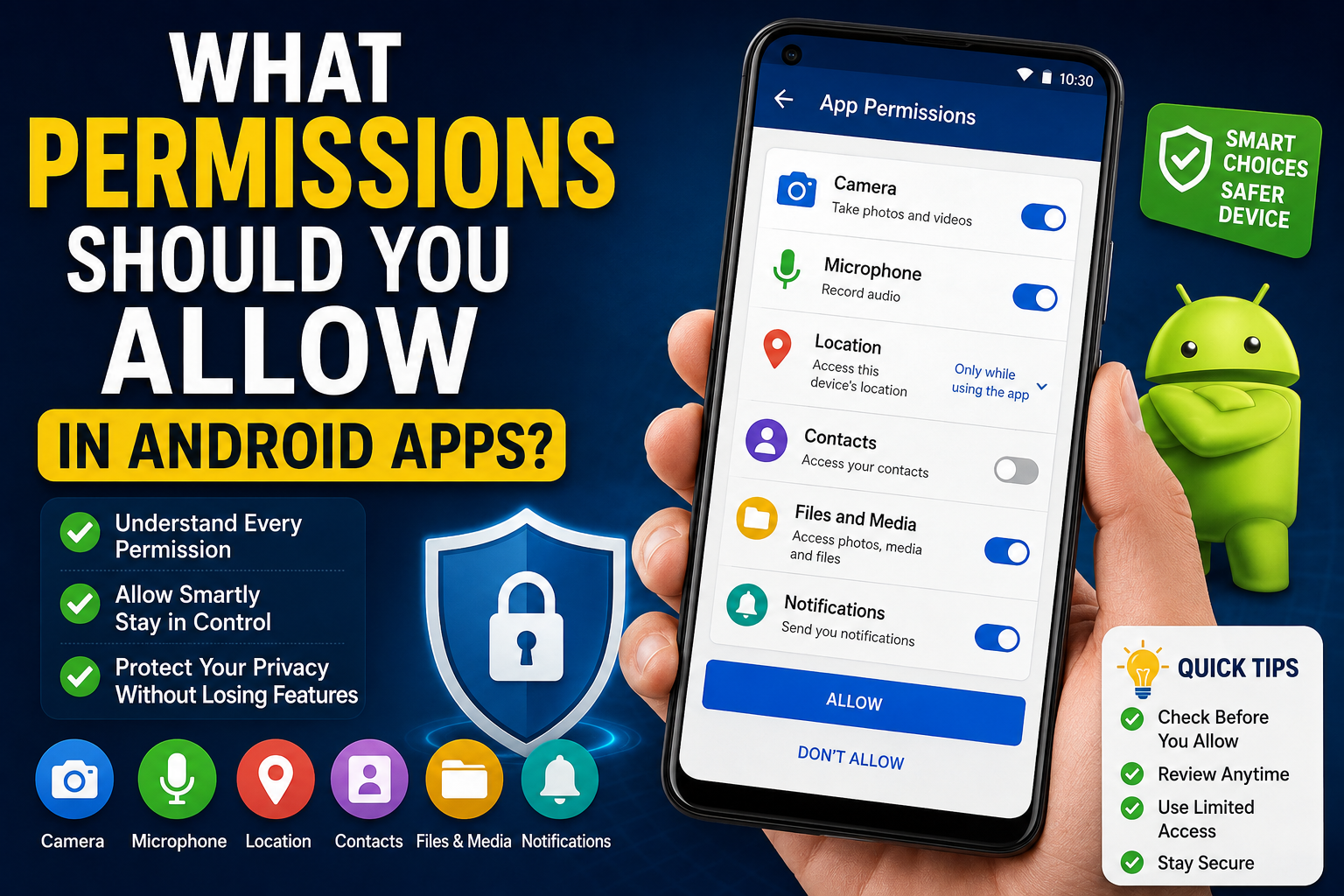
Installing a new Android app has become part of everyday life. Whether you’re downloading a banking app, a fitness tracker, a shopping platform, or a photo editor, there’s one screen that almost every user sees before getting started:
For many people, this moment creates uncertainty.
Some tap Allow without thinking because they want to use the app immediately. Others deny every permission because they worry about privacy. Neither approach is ideal.
The truth is that Android permissions aren’t designed to confuse users—they’re meant to give you control over what an app can access on your device. The challenge is knowing which permissions are reasonable, which deserve a closer look, and how to decide without needing technical knowledge.
This guide takes a practical approach. Instead of labeling permissions as “good” or “bad,” you’ll learn how to evaluate them based on the app’s purpose, the features you want to use, and the choices Android already gives you.
By the end, you’ll have a simple decision-making system you can use whenever an app asks for permission.
Table of Contents
Why Android Apps Request Permissions
Think of your phone as a house with many different rooms.
Your photos are stored in one room.
Your microphone is another.
Your contacts, location, camera, calendar, and files each represent different areas containing information or functionality.
An app cannot simply enter every room whenever it wants. Instead, Android asks for your permission before allowing access to certain parts of your device.
This system helps users decide what information they are comfortable sharing and prevents unnecessary access by default.
Permissions are not a sign that an app is unsafe. They simply indicate that a feature requires access to a particular part of your device.
For example:
- A QR code scanner needs the camera.
- A navigation app needs your location.
- A voice recorder needs the microphone.
- A messaging app may need access to your contacts if you choose to find friends.
The important question isn’t “Why is this app requesting a permission?”
The better question is:
“Does this permission support the feature I expect this app to provide?”
That simple shift in thinking will help you make better decisions.
The Biggest Myth About Android Permissions
One of the most common misunderstandings is:
Every permission request is a privacy risk.
In reality, permissions exist because Android limits what apps can access.
If a document scanning app asks for camera access, that isn’t surprising—it can’t scan documents without using your camera.
Similarly, a fitness app may request access to physical activity data so it can count steps or track workouts.
The presence of a permission request doesn’t automatically indicate that an app is collecting more information than necessary. What matters is whether the permission makes sense for the app’s purpose and whether the developer explains its use clearly.
Rather than reacting with fear, evaluate permissions using context.
The Purpose Before Permission Rule
This is the most important idea in the entire guide.
Before you decide whether to allow any permission, ask yourself:
What is this app designed to do?
Once you know the answer, permission requests become much easier to understand.
For example:
Navigation App
Expected permissions:
- Location
Possibly:
- Notifications
These requests support turn-by-turn directions and travel alerts.
Video Calling App
Expected permissions:
- Camera
- Microphone
Optional:
- Contacts
These permissions support video calls and help you connect with people you know.
Banking App
Expected permissions may include:
- Camera (to scan documents or QR codes)
- Notifications (transaction alerts)
Identity verification features may require additional access depending on the service.
Offline Calculator
Expected permissions:
Very few.
If an offline calculator requests permissions unrelated to its core function, it’s reasonable to understand why those permissions are needed before allowing them.
The key lesson is simple:
Always understand the app’s purpose before judging its permissions.
Android Gives You More Control Than Ever
Years ago, installing an app often meant accepting every requested permission at once.
Modern versions of Android are much more flexible.
Today, you can often choose options such as:
- Allow only while using the app
- Ask every time
- Don’t allow
Some permissions can even be changed later from your phone’s settings.
This means permission decisions are no longer permanent.
If you initially deny a permission and later decide to use a feature that depends on it, you can usually enable that permission whenever you choose.
Likewise, if you stop using a particular feature, you can remove the permission again.
This flexibility encourages users to make thoughtful choices rather than feeling pressured to decide everything during installation.
The Expectation Match Test
Here’s another simple framework you can remember.
Ask yourself:
“If a friend described this app to me, would I expect it to need this permission?”
Let’s look at a few examples.
| App | Permission | Expected? |
|---|---|---|
| Camera app | Camera | Yes |
| Maps app | Location | Yes |
| Music player | Microphone (voice search) | Possibly |
| QR scanner | Camera | Yes |
| Flashlight | Contacts | Worth understanding why |
| Wallpaper app | SMS | Worth understanding why |
| Calculator | Camera | Depends on whether it offers scanning features |
Notice that “worth understanding why” is different from “unsafe.”
Some apps include optional tools that explain these requests.
The goal isn’t to panic—it’s to understand.
Runtime Permissions Explained
Another reason Android permission requests can seem confusing is that they don’t always appear when you install an app.
Instead, many apps ask for permission only when you try to use a feature that requires it.
For example:
You install a photo editing app.
It opens normally.
You browse the home screen.
Everything works.
Later, you tap Edit Photo.
Only then does Android ask for permission to access your photos.
This is called a runtime permission.
It gives you more context because you understand exactly why the app is asking at that moment.
Rather than seeing permissions as interruptions, think of them as Android explaining:
“This feature needs access before it can continue.”
That makes permission requests easier to evaluate.
What Happens If You Deny a Permission?
Many users worry that denying a permission will make an app unusable.
Sometimes that’s true.
Sometimes it isn’t.
It depends on which feature you’re trying to use.
For example:
A navigation app may not be able to provide directions without location access.
However, a shopping app may continue to work even if you choose not to enable notifications.
Likewise, a note-taking app may still let you type notes even if you don’t allow microphone access for voice dictation.
Understanding the difference between required features and optional features helps you make more confident decisions.
If denying a permission disables only a feature you don’t plan to use, you may decide not to grant it.
If it prevents the app from performing its main purpose, allowing the permission may be necessary for the experience you expect.
A Better Way to Think About Permissions
Instead of asking:
“Should I always allow this permission?”
Ask:
- Does this permission support the feature I want?
- Does it match the app’s purpose?
- Has the app explained why it needs access?
- Am I comfortable enabling it?
Those four questions are often enough to make a thoughtful decision without needing technical expertise.
Understanding Every Major Android Permission
One of the biggest mistakes people make is assuming that every permission should always be allowed—or always denied.
Neither approach works.
Every permission should be judged based on what the app does and which feature you want to use.
Let’s look at the permissions you’ll encounter most often.
Camera Permission
What does it allow?
Camera permission lets an app use your device’s camera to capture photos, scan QR codes, record videos, or support visual features.
When does it make sense?
Examples include:
- Camera apps
- QR code scanners
- Document scanners
- Video calling apps
- Photo editing apps
- Banking apps that scan identity documents
- Shopping apps with barcode scanners
When should you understand more?
If an app’s main purpose has nothing to do with images or video, it’s reasonable to check why camera access is requested.
For example:
A calculator probably doesn’t need camera access unless it offers a homework-solving feature using image recognition.
The important question isn’t:
“Why does it want my camera?”
Instead ask:
“Which feature needs my camera?”
Microphone Permission
What does it allow?
This permission allows an app to record audio while you’re using features that require voice input.
Common examples
- Voice recorder apps
- Video meeting apps
- Voice search
- AI assistants
- Language translation apps
- Music recognition apps
Practical thinking
Imagine using an AI chatbot that supports voice conversations.
Microphone access makes perfect sense because speaking is one of the app’s core features.
If you never use voice features, many apps continue working normally without microphone permission.
Location Permission
Location is one of the permissions people notice most.
Fortunately, Android offers multiple choices.
You may see options such as:
- Allow all the time
- Allow only while using the app
- Ask every time
- Don’t allow
Apps that commonly use location
- Maps
- Navigation
- Taxi booking
- Food delivery
- Weather
- Travel
- Nearby business finders
A useful question
Does the app become less useful without knowing where you are?
If yes, location permission is often part of the expected experience.
If location only improves optional features, you can decide whether the added convenience is worth sharing your location.
Photos and Videos Permission
Many creative apps request access to your media library.
Examples include:
- Photo editors
- Video editors
- Social media apps
- Messaging apps
- Cloud backup services
Without this permission, these apps can’t open the pictures or videos you choose.
Modern Android versions often let you share only selected photos instead of your entire library.
This gives users much more control than older versions.
Files and Documents Permission
Some apps need access to files stored on your device.
Examples:
- PDF readers
- File managers
- Cloud storage
- Office apps
- Document scanners
Think about what you’re trying to accomplish.
If you’re opening a PDF stored on your phone, the app naturally needs permission to access that file.
Contacts Permission
This permission often creates confusion.
When is it useful?
Examples include:
- Messaging apps
- Calling apps
- Email apps
- Video conferencing
- Contact backup services
These apps may use your contacts to help you communicate with people you already know.
When should you ask questions?
If an app doesn’t involve communication, contact management, or sharing with friends, you may want to understand why contact access is requested.
Again, context matters.
Calendar Permission
Calendar access helps apps interact with your schedule.
Examples:
- Meeting apps
- Productivity tools
- Reminder apps
- Travel apps
- Appointment booking services
For example:
A video meeting app might automatically create a meeting reminder.
A travel app could add flight details to your calendar.
If the app never mentions scheduling features, you can decide whether calendar access is necessary.
Notification Permission
Since newer Android versions, notifications require your permission.
This permission allows apps to send alerts such as:
- New messages
- Delivery updates
- Banking notifications
- Calendar reminders
- Breaking news
- Weather alerts
Unlike camera or location, denying notifications usually doesn’t stop the app from working.
It simply means the app can’t interrupt you with alerts.
Many users choose to allow notifications only for apps they check regularly.
Bluetooth Permission
Bluetooth permissions have become more common.
Apps may request them for:
- Wireless headphones
- Smartwatches
- Fitness bands
- Bluetooth speakers
- Nearby accessories
- Connected medical devices
If an app works with external hardware, Bluetooth access is usually expected.
Nearby Devices Permission
Modern Android versions introduced a separate permission for nearby devices.
Examples include:
- Wireless printers
- Smart TVs
- Casting devices
- Smart home equipment
If you’re connecting your phone to another nearby device, this permission supports that experience.
Phone Permission
Phone-related permissions may allow apps to:
- Place calls
- Read phone state
- Verify calls
- Improve calling features
Examples include:
- Dialer apps
- Caller ID apps
- Spam call blockers
- Communication platforms
If the app focuses on calling or telecommunications, phone permissions are easier to understand.
SMS Permission
SMS permissions are less common today than they once were.
However, they still appear in certain situations.
Examples:
- OTP verification
- Backup tools
- Default messaging apps
Many apps no longer require full SMS access because Android now provides more privacy-friendly alternatives for one-time verification codes.
If SMS access is requested, read the explanation provided by the app and consider whether it matches the feature you’re using.
Physical Activity Permission
Fitness apps often request activity-related permissions.
Examples:
- Step counting
- Workout tracking
- Running distance
- Walking statistics
- Cycling records
Without this permission, these features may not work correctly.
If you’re installing a health or fitness app, activity tracking is generally part of its expected functionality.
Health Permissions
Recent Android versions provide more detailed health-related permissions.
Examples may include access to:
- Heart rate
- Sleep data
- Exercise records
- Wellness information
These permissions are usually requested only by health, fitness, or medical applications that explain how the information supports the services they provide.
Notification vs. Privacy Permissions
Not every permission affects your privacy in the same way.
For example:
Notification permission controls whether an app can send alerts.
Camera permission controls whether an app can use your camera.
Location permission controls whether an app can determine your position.
Understanding what each permission actually controls helps avoid unnecessary concern.
Rather than treating every request as equally sensitive, evaluate it based on the information or functionality involved.
Temporary Permissions Are Often Enough
Many users don’t realize they can choose more limited options.
For permissions such as location, Android may allow choices like:
- Only while using the app
- Ask every time
These options provide a good balance between functionality and control.
If you only use an app occasionally, temporary access may be sufficient.
Ask One Simple Question Every Time
Before tapping Allow, pause for a moment and ask:
“Can I clearly explain why this app needs this permission?”
If the answer is yes, the decision becomes much easier.
If the answer is no, take a few extra moments to review the app’s description, help documentation, or privacy policy before deciding.
That small habit can help you make more informed permission choices without relying on guesswork.
Manage Android App Permissions Like a Pro
Understanding permissions is only the first step.
The next step is learning how to manage them throughout the life of an app.
Many people review permissions only once—during installation—and never think about them again. However, apps evolve over time. New features may introduce new permission requests, while Android itself regularly adds tools that give users more control.
By building a few simple habits, you can keep your apps working the way you want while staying in control of what they can access.
Required Permissions vs. Optional Permissions
One of the most useful questions you can ask is:
“Is this permission required for the app’s main purpose, or only for an extra feature?”
This distinction makes permission decisions much easier.
Required Permissions
These are permissions that the app genuinely needs to perform its primary function.
Examples:
| App | Usually Required Permission |
|---|---|
| Maps | Location |
| QR Scanner | Camera |
| Voice Recorder | Microphone |
| Video Calling | Camera and Microphone |
| Photo Editor | Photos and Videos |
Without these permissions, the app may not be able to perform its core task.
Optional Permissions
Many apps offer extra features that not every user needs.
Examples include:
- Voice search
- Cloud backup
- Location-based recommendations
- Nearby device discovery
- Personalized notifications
If you don’t plan to use these features, you may decide not to grant the related permission.
This flexibility lets you customize the app to suit your own preferences.
Review Permissions After Major App Updates
Apps don’t remain the same forever.
Developers frequently introduce new features such as:
- AI-powered tools
- Smart recommendations
- Cloud synchronization
- Wearable device support
- Cross-device experiences
Some of these features may require additional permissions.
That doesn’t automatically mean the app has become less trustworthy—it simply means its capabilities have expanded.
Whenever an app receives a major update, it’s worth checking:
- What new features were added?
- Has the privacy policy changed?
- Are any new permissions being requested?
Spending a minute reviewing these changes can help you understand how the app is evolving.
Use Android’s Permission Manager
Modern Android devices include a built-in Permission Manager, which provides a centralized view of the permissions granted to your installed apps.
Depending on your device and Android version, you can usually find it through:
Settings → Privacy → Permission Manager
From there, you can:
- View apps that can access your camera.
- See which apps have location access.
- Review microphone permissions.
- Change permissions whenever you want.
You don’t need to uninstall an app just to change its permissions.
Android is designed to let you adjust them at any time.
Explore the Privacy Dashboard
Many recent Android versions also include a Privacy Dashboard.
Instead of only showing what permissions an app has, it can help you understand how recently certain permissions have been used.
For example, you may be able to see recent access to:
- Camera
- Microphone
- Location
This gives users additional visibility into how permissions are being used while helping them review apps they no longer need.
The exact features available may vary depending on your Android version and device manufacturer.
Take Advantage of One-Time and Limited Permissions
Android has introduced several permission options that help users balance convenience with privacy.
For certain permissions, you may see options such as:
- Allow only while using the app
- Ask every time
- Don’t allow
Choosing temporary access can be especially useful for apps you use only occasionally.
For example, if you’re using a navigation app for a single trip, allowing location access only while the app is open may be enough.
Similarly, if you only need the camera to scan one document, temporary access gives you more control than granting continuous access.
These options allow you to enjoy app features without giving broader access than necessary.
Auto-Reset Helps Manage Unused Apps
One feature that many Android users overlook is the ability to automatically remove permissions from apps that haven’t been used for an extended period.
This helps reduce unnecessary access without requiring users to remember every permission they previously granted.
If you reinstall or start using an app again later, Android may ask for the required permissions again.
This feature helps keep older, unused apps from retaining access indefinitely.
Availability depends on your Android version and device.
Permission Fatigue Is Real
If you’ve installed dozens of apps, you’ve probably seen countless permission requests.
After a while, it’s easy to tap Allow automatically just to continue.
This is sometimes called permission fatigue.
The solution isn’t to become suspicious of every app.
Instead, slow down whenever an app requests access to something important.
A few extra seconds spent reading the explanation can help you make a more informed decision.
Good habits matter more than memorizing every permission.
Common Mistakes Android Users Make
Learning what not to do is just as valuable as learning what to do.
Mistake 1: Always Allow Everything
Granting every permission without reading removes the opportunity to make informed choices.
Take a moment to understand why the permission is requested.
Mistake 2: Deny Everything
Some users deny every permission out of concern.
While understandable, this can prevent apps from performing the tasks you installed them to do.
Balance is usually the better approach.
Mistake 3: Never Review Permissions Again
Apps change over time.
Revisiting permissions occasionally helps ensure they still align with the features you use.
Mistake 4: Judging Permissions Without Context
A camera permission isn’t unusual for a document scanner.
A location permission isn’t surprising for a navigation app.
Always consider the app’s purpose before making a decision.
Mistake 5: Assuming Every Permission Is Equally Sensitive
Different permissions serve different purposes.
Notification access, for example, is very different from location access.
Understanding what each permission controls helps you make more thoughtful choices.
The Android Permission Decision Checklist
Whenever an app asks for a permission, ask yourself these questions:
✅ What is this app designed to do?
✅ Which feature requires this permission?
✅ Does the permission match the app’s purpose?
✅ Is the feature optional or essential?
✅ Has the app explained why it needs access?
✅ Can I choose “Only while using the app” or “Ask every time”?
✅ Am I comfortable granting this permission?
If you can answer these questions confidently, you’re already making better decisions than simply tapping Allow or Deny without thinking.
Real-World Scenarios
Let’s apply everything you’ve learned.
Scenario 1: Food Delivery App
Requests:
- Location
- Notifications
Decision:
Location helps find nearby restaurants and deliver orders accurately.
Notifications provide order updates.
These permissions align with the app’s purpose.
Scenario 2: Fitness Tracker
Requests:
- Physical Activity
- Location
Decision:
These permissions support workout tracking, distance calculations, and activity monitoring.
If you want those features, the requests are expected.
Scenario 3: Photo Editing App
Requests:
- Photos
- Camera
Decision:
Photos are needed to edit images already on your device.
Camera access may support capturing new photos directly within the app.
Both requests fit the app’s primary purpose.
Scenario 4: Language Learning App
Requests:
- Microphone
Decision:
Microphone access supports pronunciation practice, voice exercises, or speech recognition features.
If you don’t use voice lessons, you may decide not to grant it.
Frequently Asked Questions
Should I always allow Android app permissions?
No. Evaluate each permission based on the app’s purpose, the feature you want to use, and the explanation provided by the developer.
Can I change permissions later?
Yes. Android allows you to review and update app permissions through your device’s settings, so your decision isn’t permanent.
Will denying a permission break an app?
It depends on the app and the permission. Some permissions are required for core functionality, while others support optional features.
Is location permission always necessary?
No. It depends on the app. Navigation and weather apps often rely on location, while many other apps work perfectly well without it.
How often should I review app permissions?
It’s a good habit to review permissions periodically, especially after major app updates or when you no longer use certain apps regularly.
Final Words
Android permissions are not obstacles—they’re tools that help you decide how apps interact with your device.
Rather than automatically allowing or denying every request, focus on understanding why a permission is needed and whether it supports the feature you intend to use.
The most effective approach is to think in context. A permission that makes perfect sense for one type of app may deserve a closer look in another. By considering the app’s purpose, reviewing the explanation provided, and taking advantage of Android’s built-in permission controls, you can make decisions with greater confidence.
You don’t need to be a privacy expert or a software engineer to manage app permissions wisely. A few thoughtful questions and occasional reviews are often enough to strike the right balance between functionality, convenience, and personal control.
Editor’s Tip (Unique Value Section)
Before installing a new app, don’t focus only on the permission pop-up. Instead, spend one minute checking three things together:
- The app’s description – What features does it promise?
- The permissions it requests – Do they support those features?
- The privacy policy – Does it clearly explain why those permissions are needed?
When these three sources tell the same story, it’s much easier to understand how the app is designed to work. This simple habit helps you make informed decisions based on context rather than assumptions, and it’s a practical approach you can use with almost any Android app.
Keep Exploring
Discover more reviews, guides, and comparisons to help you choose the right Android apps.
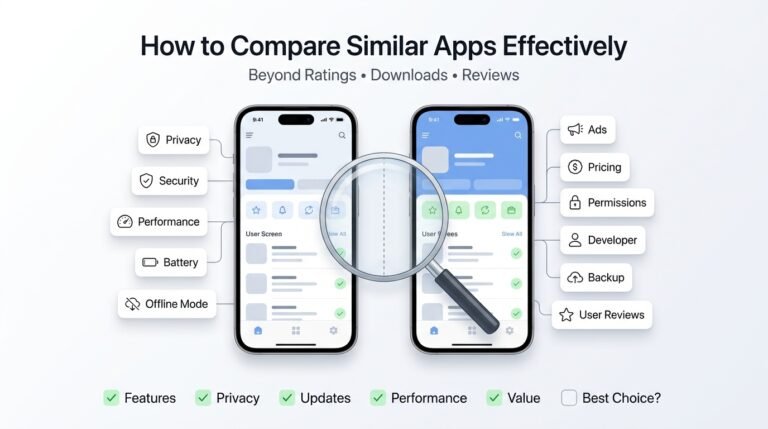 How to Compare Similar Apps Like an Expert (27 Checks)
Published: 27 Jul 2026 • 01:23 PM Updated: 27 Jul 2026 • 01:23 PM Reading: 7 min read...
How to Compare Similar Apps Like an Expert (27 Checks)
Published: 27 Jul 2026 • 01:23 PM Updated: 27 Jul 2026 • 01:23 PM Reading: 7 min read...
 How to Choose the Right Android App Before Downloading: A Practical Decision Guide (2026)
Published: 25 Jul 2026 • 04:45 PM Updated: 25 Jul 2026 • 04:45 PM Reading: 7 min read...
How to Choose the Right Android App Before Downloading: A Practical Decision Guide (2026)
Published: 25 Jul 2026 • 04:45 PM Updated: 25 Jul 2026 • 04:45 PM Reading: 7 min read...
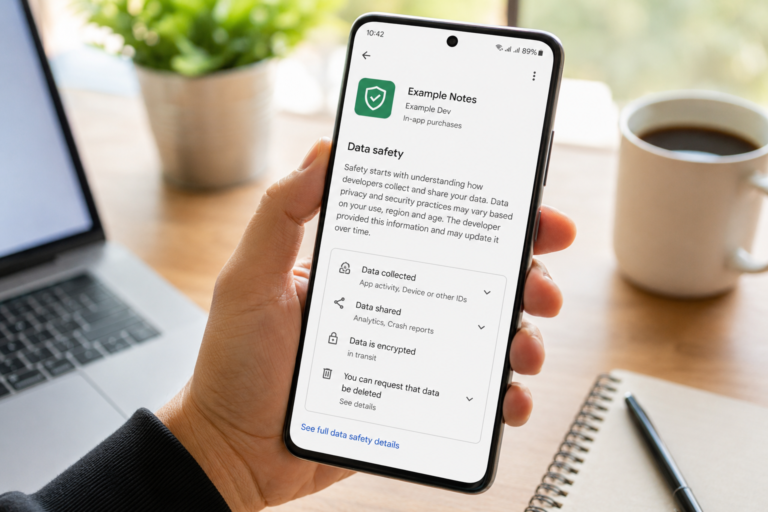 How to Check If an App Shares Data With Third Parties
Published: 21 Jul 2026 • 11:30 PM Updated: 21 Jul 2026 • 11:34 PM Reading: 19 min read...
How to Check If an App Shares Data With Third Parties
Published: 21 Jul 2026 • 11:30 PM Updated: 21 Jul 2026 • 11:34 PM Reading: 19 min read...
 What Happens When You Delete an App? The Complete Android Guide
Published: 17 Jul 2026 • 12:09 AM Updated: 17 Jul 2026 • 12:09 AM Reading: 47 min read...
What Happens When You Delete an App? The Complete Android Guide
Published: 17 Jul 2026 • 12:09 AM Updated: 17 Jul 2026 • 12:09 AM Reading: 47 min read...