Quick Answer
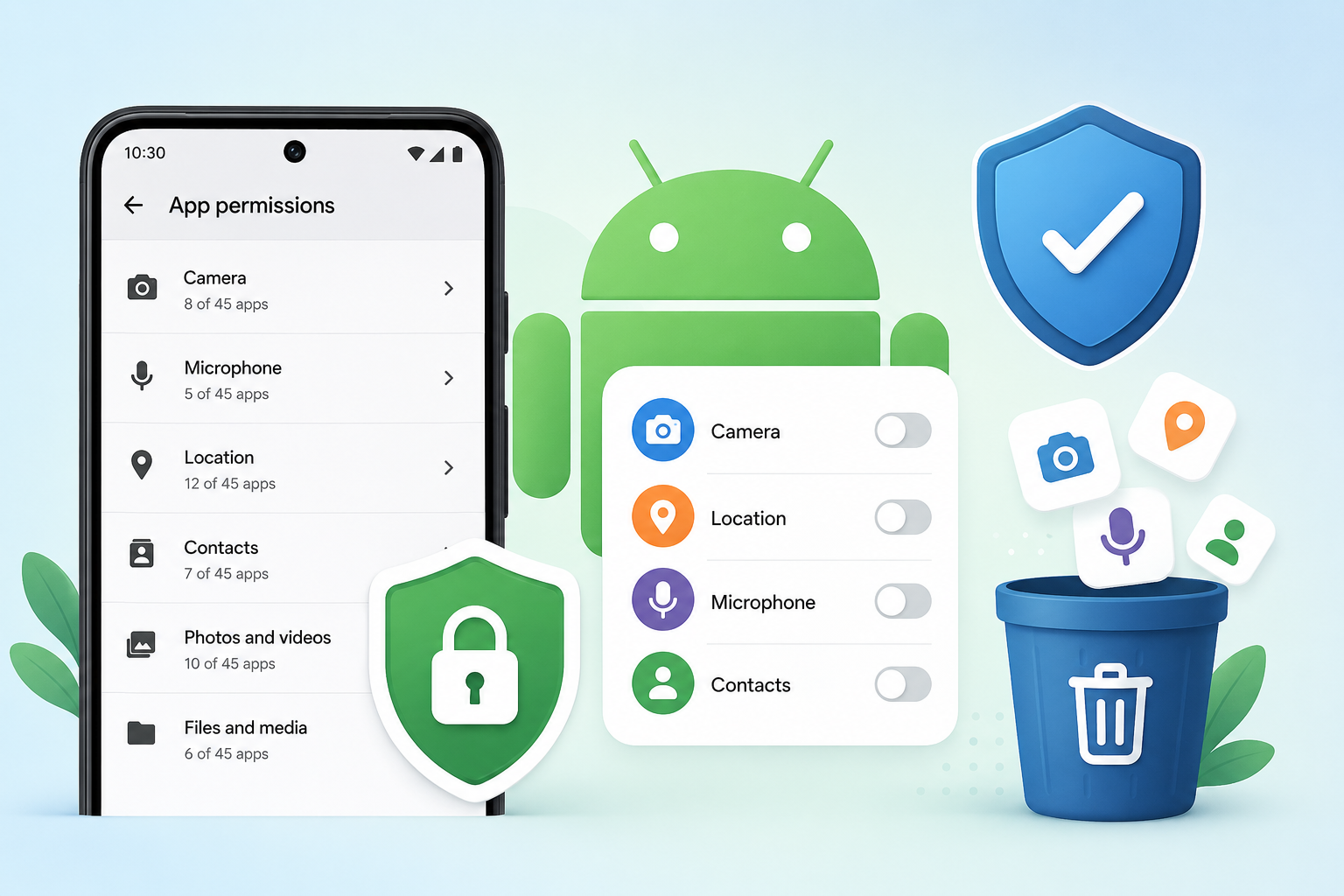
Unused app permissions are one of the easiest privacy risks to reduce on an Android phone. Instead of uninstalling every app, review which apps still have access to sensitive data such as your camera, microphone, location, contacts, photos, and files. Remove permissions that no longer match how you use the app today. A quick permission review every few months helps keep your device aligned with your current habits, not decisions you made years ago.
Table of Contents
Why This Guide Is Different
Most articles about Android permissions follow the same pattern:
- Open Settings.
- Tap Permission Manager.
- Remove permissions.
- Done.
That tells you how to tap buttons, but it doesn’t help you decide which permissions actually matter, which ones you can safely remove, or how to think about app trust over time.
Android has become much smarter about privacy, but our habits haven’t changed at the same pace. Many people carefully compare phones before buying them, yet rarely spend five minutes reviewing which apps can access their personal information.
This guide focuses on decision-making, not just settings. By the end, you’ll have a practical system for reviewing permissions confidently instead of guessing.
The Biggest Privacy Risk Isn’t a Malicious App
When people think about Android privacy, they often imagine malware or fake apps stealing information.
In reality, a more common issue is much simpler:
You gradually give more apps access than you currently need.
Consider this situation.
You install a document scanner while applying for a job. It needs camera access to scan paperwork, so you grant permission. Months later, the application process is over, but the scanner remains installed with the same access.
Nothing is necessarily wrong with the app. The real issue is that your phone still reflects decisions made for a temporary task.
The same pattern happens with travel apps, event apps, language translators, QR code scanners, expense trackers, and countless other utilities that solve a short-term problem but remain on the device long afterward.
Privacy isn’t only about avoiding bad apps. It’s also about keeping your phone synchronized with your current life.
Understanding Permission Debt
One useful way to think about Android permissions is through the idea of Permission Debt.
This isn’t an official Android feature. It’s a practical way to understand how permissions accumulate over time.
Imagine borrowing small amounts of money every week. None of the individual amounts seem significant, but eventually the total becomes difficult to manage.
Permissions work in a similar way.
Every time you tap Allow, you’re making a decision that may remain in place for years. Individually, those choices feel harmless. Collectively, they can create a long list of apps with access to sensitive parts of your device.
Permission Debt grows quietly because each decision is made in isolation.
Today it’s a photo editor.
Next week it’s a QR scanner.
Next month it’s a food delivery app.
A year later, you may have dozens of apps with camera, location, or storage access—even though you actively use only a fraction of them.
Instead of asking:
“Is this permission dangerous?”
Ask a different question:
“Would I consciously grant this permission again today?”
That simple shift often reveals permissions you no longer need.
Why Forgotten Permissions Matter More Than New Ones
When an app requests a permission during installation, you’re paying attention. You’re evaluating whether the request makes sense.
Months or years later, that same permission rarely receives another thought.
Ironically, older permissions often deserve more scrutiny than newer ones because several things may have changed:
- Your daily routine.
- The app’s features.
- The developer’s priorities.
- Android’s privacy controls.
- The alternatives available in the Play Store.
A permission that was perfectly reasonable three years ago might no longer be necessary today.
Rather than treating permission reviews as a one-time setup task, think of them as routine digital maintenance—similar to updating software or deleting files you no longer need.
Permission Age: An Overlooked Way to Evaluate Risk
Most permission guides ask:
Which permissions does this app have?
A more useful question is:
How long has this permission existed without being reviewed?
This idea can be called Permission Age.
Again, it’s not an Android feature. It’s a simple framework for evaluating whether your current settings still reflect your needs.
For example:
- A navigation app installed last week probably still needs location access.
- A QR scanner installed three years ago might not.
- A conference app from last year’s event almost certainly doesn’t need ongoing permissions if you no longer use it.
Permission Age reminds us that time changes context. As your habits evolve, your permissions should evolve too.
Trust Changes Over Time
Many users assume trust is permanent.
If an app felt trustworthy when installed, they never question it again.
But trust isn’t static.
An app may introduce new features, change its business model, update its privacy policy, or even be acquired by a different company. None of these changes automatically make the app unsafe, but they can change how much access it reasonably needs.
Instead of asking whether you trusted an app years ago, ask whether you understand why it has its current permissions today.
Re-evaluating trust occasionally is a healthy habit, not a sign of suspicion.
Permission Inflation: When Access Gradually Expands
Another pattern worth watching is Permission Inflation.
Many apps become more capable over time.
A simple note-taking app may later add voice recording.
A photo editor might introduce cloud backup.
A messaging app may add location sharing or AI-powered features.
As functionality grows, permission requests often grow with it.
This doesn’t necessarily indicate a problem. New features often require new permissions.
The important question is whether you actually use those features.
If you don’t record voice notes, perhaps the microphone permission isn’t essential for your usage.
If you never share your location through a messaging app, you may prefer not to grant continuous location access.
Permission Inflation isn’t about rejecting progress—it’s about matching permissions to your personal usage rather than every possible feature.
Build a Permission Confidence Score
Instead of reviewing permissions randomly, create a simple confidence score for each app.
This isn’t something Android calculates. It’s a personal decision tool.
Ask yourself how confident you are that an app still needs its current permissions.
You might think in terms like:
- High confidence: I use this feature regularly and understand why the permission is required.
- Medium confidence: I think it’s needed, but I’m not completely sure.
- Low confidence: I don’t remember granting it or I no longer use the feature.
Start your review with the apps that receive the lowest confidence.
This approach is often faster than checking every app in alphabetical order because it directs your attention toward uncertainty instead of familiarity.
The Hidden Cost of “Just in Case”
Many Android users keep apps installed “just in case.”
A boarding pass app from a previous holiday.
A ticket booking app used once.
A PDF scanner needed for one document.
A language translator downloaded for a short trip.
There’s nothing wrong with keeping these apps if you genuinely expect to use them again. The problem arises when their permissions remain active indefinitely without a second thought.
Before reviewing any settings, ask yourself one simple question:
“If I forgot this app existed until today, should it still have access to my personal information?”
In many cases, the answer becomes surprisingly clear.
Think in Terms of Access, Not Permissions
One mental shift can make permission reviews much easier.
Don’t think of permissions as technical settings.
Think of them as access rights.
Camera permission means access to your camera.
Location permission means access to where you are.
Contacts permission means access to people you know.
Photos permission means access to memories you’ve chosen to keep.
Viewing permissions this way makes each decision feel more practical. You’re not toggling settings—you’re deciding who can access parts of your digital life and whether that access still serves a purpose.
Before Opening Settings, Know What You’re Looking For
One reason permission reviews feel overwhelming is that people start by looking at a long list of apps.
That’s backwards.
Instead, start with the information that matters most:
Which type of personal data do you care about protecting?
For most users, the priority usually looks like this:
- Location
- Camera
- Microphone
- Photos & Videos
- Contacts
- Files & Documents
- Calendar
- Nearby Devices
- Phone
- SMS
This order isn’t fixed for everyone.
A business owner may care more about contacts.
A journalist may prioritize the microphone.
A parent may focus on photos.
A traveler may accept location access for navigation apps.
Privacy is personal. Your review should reflect how you use your phone.
Build a Permission Map Instead of an App List
One of the biggest mistakes Android users make is reviewing permissions app by app.
That sounds logical, but it’s inefficient.
Instead, create what you can think of as a Permission Map.
Rather than asking:
What permissions does App A have?
Ask:
Which apps currently have Camera access?
Then ask the same for:
- Location
- Microphone
- Contacts
- Photos
- Files
Immediately, patterns become obvious.
You might discover:
- Nine apps can access your camera.
- Fourteen apps can access your location.
- Three apps can access your microphone.
Seeing permissions grouped by category makes unusual access stand out much faster than browsing individual apps.
The Three Questions Rule
Whenever you’re unsure whether to keep a permission, ask these three questions.
1. Does this permission directly support the app’s main purpose?
A navigation app needing location makes sense.
A weather app using location for local forecasts is understandable.
A barcode scanner requesting contacts deserves a closer look.
Always compare the permission to the app’s primary job—not every optional feature it offers.
2. Would I notice if this permission disappeared?
Imagine removing the permission right now.
Would anything important stop working?
If the answer is:
“I’m not sure.”
that’s often a sign the permission deserves another look.
Many people keep permissions simply because they never test whether they’re still necessary.
3. Would I approve this permission if I installed the app today?
This question removes history from the decision.
Forget that you’ve had the app for years.
Pretend you’re installing it today.
Would you confidently tap Allow?
If not, review whether you still need that access.
Camera Permission: Think Beyond Taking Photos
Most people associate camera permission with photography.
But many apps use the camera for other reasons:
- QR code scanning
- Document scanning
- Video calls
- Augmented reality
- Barcode reading
- Identity verification
Ask yourself:
How often do I actually use those features?
If you scanned one document two years ago and never opened that feature again, continuous camera access may no longer match your usage.
On the other hand, if you regularly use a messaging app for video calls, camera access remains reasonable.
The goal isn’t to deny every permission—it’s to keep permissions aligned with real habits.
Location Permission Deserves More Thought Than Most People Give It
Location isn’t just about maps.
Many apps use it to:
- Find nearby services
- Display local weather
- Suggest nearby places
- Tag photos
- Improve search results
The more important decision isn’t simply Allow or Don’t Allow.
It’s choosing how much access is appropriate.
When Android offers options like:
- Allow all the time
- Allow only while using the app
- Ask every time
- Don’t allow
consider the least permissive option that still lets you use the feature comfortably.
For many apps, While using the app provides a practical balance between convenience and privacy.
Microphone Access Is Often Easier to Review Than You Think
People sometimes worry whenever they see microphone permission.
Instead of assuming the worst, ask:
What feature actually needs audio?
Examples include:
- Voice messages
- Voice search
- Voice typing
- Video recording
- Online meetings
If you never use those features inside that particular app, microphone access may not be necessary for your daily use.
Contacts Permission Should Match Your Goals
Contacts are among the most personal pieces of information on a phone.
Many apps request access to help you:
- Find friends
- Invite contacts
- Share content
- Sync address books
But not everyone wants those features.
If you’re perfectly happy entering phone numbers manually or searching for friends yourself, the permission may add convenience without being essential.
There’s nothing wrong with deciding that convenience isn’t worth additional access.
Photos and Videos: Consider What the App Really Needs
Modern Android versions often let you choose between:
- All photos
- Selected photos
- No access
Whenever possible, choose the smallest level of access that still accomplishes your task.
For example:
If you’re uploading one profile picture, the app may not need access to your entire photo library.
Small decisions like this reduce unnecessary exposure without making the app difficult to use.
File Access Isn’t Always as Broad as It Used to Be
Older Android versions often relied on broad storage permissions.
Newer versions increasingly encourage more limited access, allowing apps to request only the files they need.
That’s a positive shift because it gives users more control over personal documents and downloads.
Still, it’s worth checking older apps that may have retained broad file access from previous Android versions.
Notifications Can Also Affect Privacy
Notification permission isn’t usually considered sensitive in the same way as location or contacts.
However, notifications influence your daily attention.
Some apps genuinely need them.
Others mainly use notifications to encourage frequent engagement.
Instead of asking:
“Can this app send notifications?”
ask:
“Would I miss anything important if it couldn’t?”
If the answer is no, disabling notifications may improve your overall phone experience.
Nearby Devices Permission Is Often Misunderstood
This permission commonly supports:
- Bluetooth accessories
- Smartwatches
- Wireless headphones
- Nearby sharing
- Connected home devices
If you never use those features inside an app, review whether the permission still makes sense.
Again, the focus isn’t suspicion—it’s relevance.
Calendar Permission Is About Context
Calendar access can be genuinely useful for:
- Meeting reminders
- Travel planning
- Productivity tools
But many users install productivity apps briefly and then move on.
If an app no longer helps manage your schedule, there’s little reason for it to continue reading calendar information.
SMS and Phone Permissions Need Extra Attention
Permissions involving calls and text messages deserve careful review because they often relate to:
- Account verification
- Caller identification
- Phone management
- Messaging features
Ask yourself:
Is this functionality something I actively use?
If not, removing access may simplify your phone’s overall privacy profile.
Test Before You Decide
One overlooked strategy is surprisingly simple.
Temporarily remove a permission.
Then use the app normally for a few days.
If nothing changes, you’ve learned something valuable:
The permission wasn’t essential for your current usage.
If a feature stops working, Android usually lets you grant the permission again when needed.
This small experiment replaces assumptions with real experience.
Separate “Necessary” From “Convenient”
Not every permission falls into the same category.
Some are necessary.
Others simply make certain tasks faster.
For example:
A shopping app may use your location to detect nearby stores automatically.
That’s convenient.
But manually entering your city achieves the same goal.
Learning to distinguish convenience from necessity leads to better permission decisions without reducing your overall experience.
Don’t Let Old Habits Control Today’s Privacy
One reason unnecessary permissions remain active is habit.
We install an app.
We grant access.
The app works.
Years pass.
We never reconsider.
Good privacy isn’t about saying “no” to every request.
It’s about making sure yesterday’s decisions still make sense today.
Create a Five-Minute Permission Routine
Instead of waiting until you buy a new phone, make permission reviews part of regular phone maintenance.
A simple routine might look like this:
- Check apps installed during the past month.
- Review Camera access.
- Review Microphone access.
- Review Location access.
- Review Contacts access.
- Remove apps you haven’t opened in months.
- Update frequently used apps from trusted sources.
- Restart your phone after major system updates if recommended by the manufacturer.
Five minutes every few months is usually enough to keep permissions aligned with your current needs.
A Better Privacy Goal
Many articles encourage users to remove as many permissions as possible.
That’s not the right goal.
The better goal is much simpler:
Every permission on your phone should have a reason that you still understand today.
If you can explain why an app has access, you’re probably making an informed decision.
If you can’t, that’s your signal to review it—not because the app is necessarily unsafe, but because your phone should reflect your present choices, not forgotten ones.
The Biggest Mistake Isn’t Granting Permissions—It’s Never Reviewing Them Again
Many people think privacy mistakes happen the moment they tap Allow.
In reality, the bigger problem often comes much later.
Imagine these two users.
User A
- Installs 60 apps.
- Reviews permissions every few months.
- Removes access they no longer need.
User B
- Installs 60 apps.
- Never checks permissions again.
- Keeps the same settings for four years.
Neither person necessarily installed unsafe apps.
The difference is that one phone evolves with its owner, while the other becomes a collection of old decisions that no longer match daily life.
Good privacy isn’t about making one perfect decision. It’s about making small corrections over time.
Don’t Chase “Zero Permissions”
Some privacy articles unintentionally encourage the idea that fewer permissions always mean better security.
That’s too simplistic.
Imagine removing location access from your navigation app.
You’ve improved privacy—but you’ve also removed the app’s primary purpose.
The goal isn’t to eliminate permissions.
The goal is to make every permission intentional.
An intentional permission is one where you understand:
- why it exists,
- what feature depends on it,
- and whether that feature still matters to you.
When permissions become intentional instead of automatic, privacy naturally improves.
Build a Habit, Not a One-Time Cleanup
Many users perform a large privacy cleanup after reading an article.
Then they never think about permissions again.
A better approach is creating a small habit.
Instead of waiting until your phone feels cluttered, review permissions whenever one of these events happens:
After installing several new apps
Installing multiple apps in a short period often means approving several permission requests. A quick review afterwards helps confirm that every approval still makes sense.
After a major Android update
New Android versions sometimes introduce additional privacy controls or change how permissions work.
Taking five minutes after a major update helps you benefit from those improvements instead of leaving everything unchanged.
After changing jobs or schools
Many temporary apps become unnecessary.
Examples include:
- company communication apps
- online exam apps
- training platforms
- event management apps
- conference apps
Removing permissions—or uninstalling the apps entirely—keeps your device aligned with your current routine.
After returning from travel
Travel often introduces short-term apps:
- airline apps
- hotel apps
- transport apps
- local maps
- translation tools
- ticketing apps
Once the trip ends, review whether those apps still need ongoing access to your location, camera, or storage.
Think About Permissions Like House Keys
Imagine giving someone a spare key to your house.
Years later, would you still remember everyone who has one?
Probably not.
That doesn’t automatically mean those people are untrustworthy.
It simply means it’s worth checking whether each key still has a purpose.
Android permissions work similarly.
Reviewing access isn’t about assuming the worst.
It’s about making sure access still matches today’s reality.
The Difference Between Trust and Convenience
Many permissions exist because they make apps easier to use.
Examples include:
- automatic location detection
- contact syncing
- photo selection
- nearby device discovery
Convenience isn’t bad.
But convenience should be a conscious choice rather than the default.
Ask yourself:
Am I keeping this permission because I truly benefit from it, or simply because removing it would require one extra tap?
Sometimes the extra tap is worth the added privacy.
Sometimes it isn’t.
The right answer depends on your own priorities.
When Removing Permissions Can Be the Wrong Decision
Permission management isn’t about saying “No” to everything.
There are situations where removing permissions creates unnecessary frustration.
For example:
Health and Fitness Apps
Many rely on location, sensors, or activity tracking to provide accurate information.
Navigation Apps
Without location access, many core features simply won’t work.
Banking Apps
Some banking apps use camera access for cheque deposits or identity verification.
Removing those permissions may prevent specific tasks until you grant access again.
Messaging Apps
Camera and microphone permissions are essential if you regularly make video or voice calls.
The important point is this:
Evaluate permissions based on your actual usage, not on someone else’s recommendations.
Should You Trust Android’s Automatic Permission Reset?
Recent Android versions can automatically revoke certain permissions from apps that remain unused for an extended period.
This is a helpful safety feature.
However, it shouldn’t replace your own reviews.
Why?
Because Android doesn’t know:
- which apps you still trust,
- which features you no longer use,
- or whether an app still deserves broad access based on your personal preferences.
Automatic permission reset reduces forgotten access.
Thoughtful reviews improve decision-making.
The two approaches complement each other.
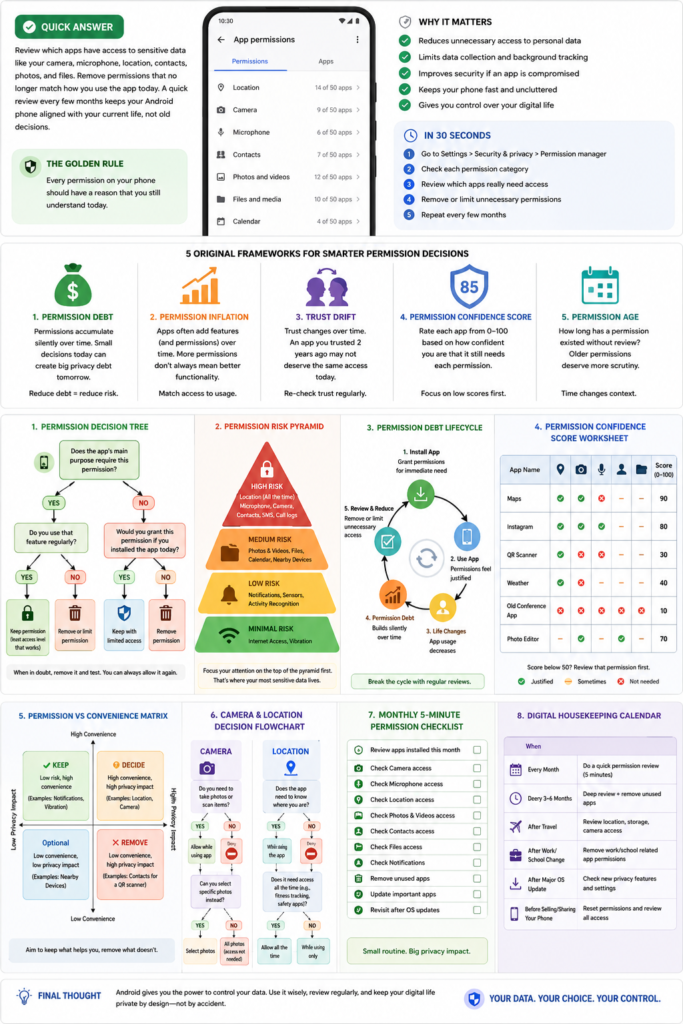
A Simple Decision Matrix You Can Use Anytime
Whenever you’re unsure about a permission, use this checklist.
| Question | If YES | If NO |
|---|---|---|
| Does this permission directly support the app’s main purpose? | Continue | Review it |
| Do I use that feature regularly? | Continue | Consider removing it |
| Would I immediately notice if the permission disappeared? | Keep it | Test without it |
| Would I grant this permission again if I installed the app today? | Keep it | Review it carefully |
| Am I keeping it only because I’ve never checked before? | Review it | Keep if justified |
This takes less than a minute per app but often reveals permissions that deserve another look.
Who Benefits Most From Regular Permission Reviews?
Parents
Children often install games, learning apps, and entertainment apps quickly.
Regular permission reviews help parents understand what information those apps can access.
Students
School projects frequently require temporary apps.
Once assignments are complete, reviewing permissions prevents unnecessary long-term access.
Professionals
Business communication apps, document scanners, and productivity tools often receive broad permissions.
Periodic reviews help keep work-related access organised.
Frequent Travelers
Travel introduces many short-lived apps.
Cleaning up afterwards reduces unnecessary location and storage access.
Who Probably Doesn’t Need to Worry as Much?
If you:
- install very few apps,
- regularly uninstall unused software,
- review permissions whenever you install something new,
then large permission audits may not be necessary very often.
Even so, checking once or twice a year is still a sensible habit.
Better Than Constant Permission Reviews
Permission management is only one part of Android privacy.
You’ll usually gain more value by combining it with a few simple habits:
- Install apps only when you genuinely need them.
- Prefer official app stores whenever possible.
- Remove apps you no longer use.
- Keep Android and your apps updated.
- Read permission prompts instead of approving them automatically.
- Choose the least amount of access that still allows the app to function as expected.
Good privacy comes from consistent, informed choices rather than constant tweaking.
Final Recommendation
Removing unused app permissions isn’t about becoming suspicious of every app you install.
It’s about recognising that your phone changes over time.
Your routines change.
Your interests change.
Your work changes.
The apps you depend on today are probably different from the ones you relied on two years ago.
Your permissions should evolve in the same way.
Instead of asking:
“How many permissions can I remove?”
ask:
“Does every permission on my phone still have a clear purpose?”
That single question is often enough to guide smarter privacy decisions.
Android already gives users powerful tools to control app access. The real advantage comes from using those tools thoughtfully, reviewing them occasionally, and making sure your device reflects how you live today—not how you used it years ago.
Frequently Asked Questions
1. Does removing an app permission delete my personal data?
No. Removing a permission usually prevents the app from accessing a specific feature, such as the camera or location. It does not normally delete your saved account or files within the app.
2. Can I grant a permission again later?
Yes. If an app needs a permission after you’ve removed it, Android generally allows you to grant access again through the permission prompt or your device settings.
3. Should I uninstall an app instead of removing its permissions?
If you no longer use the app, uninstalling it is often the better choice because it also removes the app itself and frees storage space. If you plan to use it again soon, keeping it installed while limiting permissions may be sufficient.
4. Why do some apps stop working after I remove permissions?
Certain features depend on specific permissions. For example, a navigation app needs location access to provide directions. If a feature stops working, you can decide whether restoring the permission is worthwhile for your needs.
5. Is “Allow only while using the app” better than “Allow all the time”?
For many apps, yes. It limits access to periods when you’re actively using the app, offering a practical balance between functionality and privacy. However, some apps with legitimate background functions may require broader access.
6. How often should I review app permissions?
For most users, reviewing permissions every three to six months—or after installing many new apps, returning from travel, or updating to a major Android version—is a reasonable routine.
7. Can Android automatically remove unused permissions?
Many modern Android versions include a feature that automatically revokes certain sensitive permissions from apps that haven’t been used for an extended period. Availability and behaviour may vary by Android version and device manufacturer.
8. Are all permission requests a privacy risk?
No. Many permissions are essential for an app’s core features. The key is ensuring the requested permission matches what the app is designed to do and how you actually use it.
9. Is it safe to deny every permission an app requests?
Not necessarily. Denying essential permissions may prevent important features from working. Instead of rejecting every request, grant only the permissions that are relevant to the functions you intend to use.
10. What’s the easiest way to keep Android permissions under control?
Rather than waiting for a major cleanup, review permissions as part of regular phone maintenance. Small, periodic checks are usually easier and more effective than reviewing dozens of apps at once.
Editorial Disclosure
TNAPK independently publishes Android app reviews, guides, and educational technology content. This article is based on publicly available Android features, practical analysis, and user-focused evaluation. Android versions, manufacturer interfaces, app behaviour, and permission options may differ between devices and software updates. Always verify important privacy settings through your device manufacturer and the official app developer before making decisions.
Keep Exploring
Discover more reviews, guides, and comparisons to help you choose the right Android apps.
 How to Compare Similar Apps Like an Expert (27 Checks)
Published: 27 Jul 2026 • 01:23 PM Updated: 27 Jul 2026 • 01:23 PM Reading: 7 min read...
How to Compare Similar Apps Like an Expert (27 Checks)
Published: 27 Jul 2026 • 01:23 PM Updated: 27 Jul 2026 • 01:23 PM Reading: 7 min read...
 How to Choose the Right Android App Before Downloading: A Practical Decision Guide (2026)
Published: 25 Jul 2026 • 04:45 PM Updated: 25 Jul 2026 • 04:45 PM Reading: 7 min read...
How to Choose the Right Android App Before Downloading: A Practical Decision Guide (2026)
Published: 25 Jul 2026 • 04:45 PM Updated: 25 Jul 2026 • 04:45 PM Reading: 7 min read...
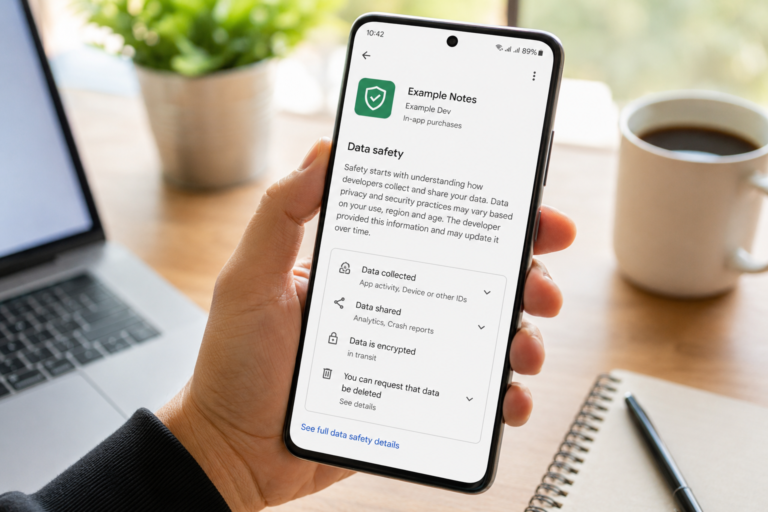 How to Check If an App Shares Data With Third Parties
Published: 21 Jul 2026 • 11:30 PM Updated: 21 Jul 2026 • 11:34 PM Reading: 19 min read...
How to Check If an App Shares Data With Third Parties
Published: 21 Jul 2026 • 11:30 PM Updated: 21 Jul 2026 • 11:34 PM Reading: 19 min read...
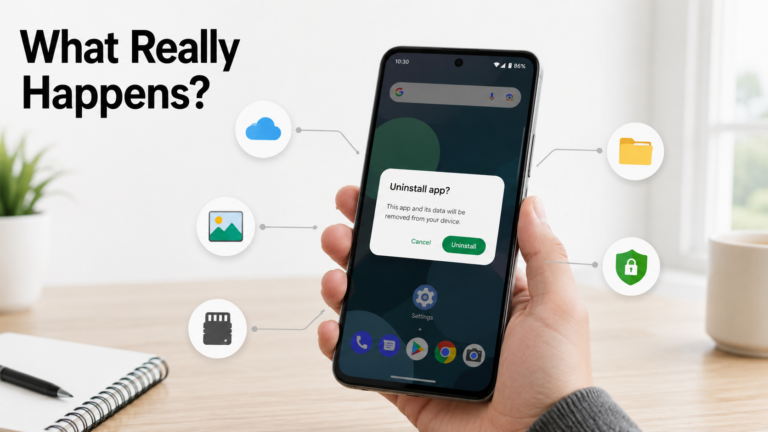 What Happens When You Delete an App? The Complete Android Guide
Published: 17 Jul 2026 • 12:09 AM Updated: 17 Jul 2026 • 12:09 AM Reading: 47 min read...
What Happens When You Delete an App? The Complete Android Guide
Published: 17 Jul 2026 • 12:09 AM Updated: 17 Jul 2026 • 12:09 AM Reading: 47 min read...